What the Vault is
The Vault is where your reference material lives — research notes, interview transcripts, source PDFs, old drafts, world-bibles you built in another tool, book chapters from other authors you're studying. It sits alongside your manuscript in the same project, gets indexed for full-text search on upload, and is available to Ask and to Chat when you use whole-book scope. It is not part of your manuscript itself — nothing in the Vault becomes prose in your book unless you explicitly copy it in.
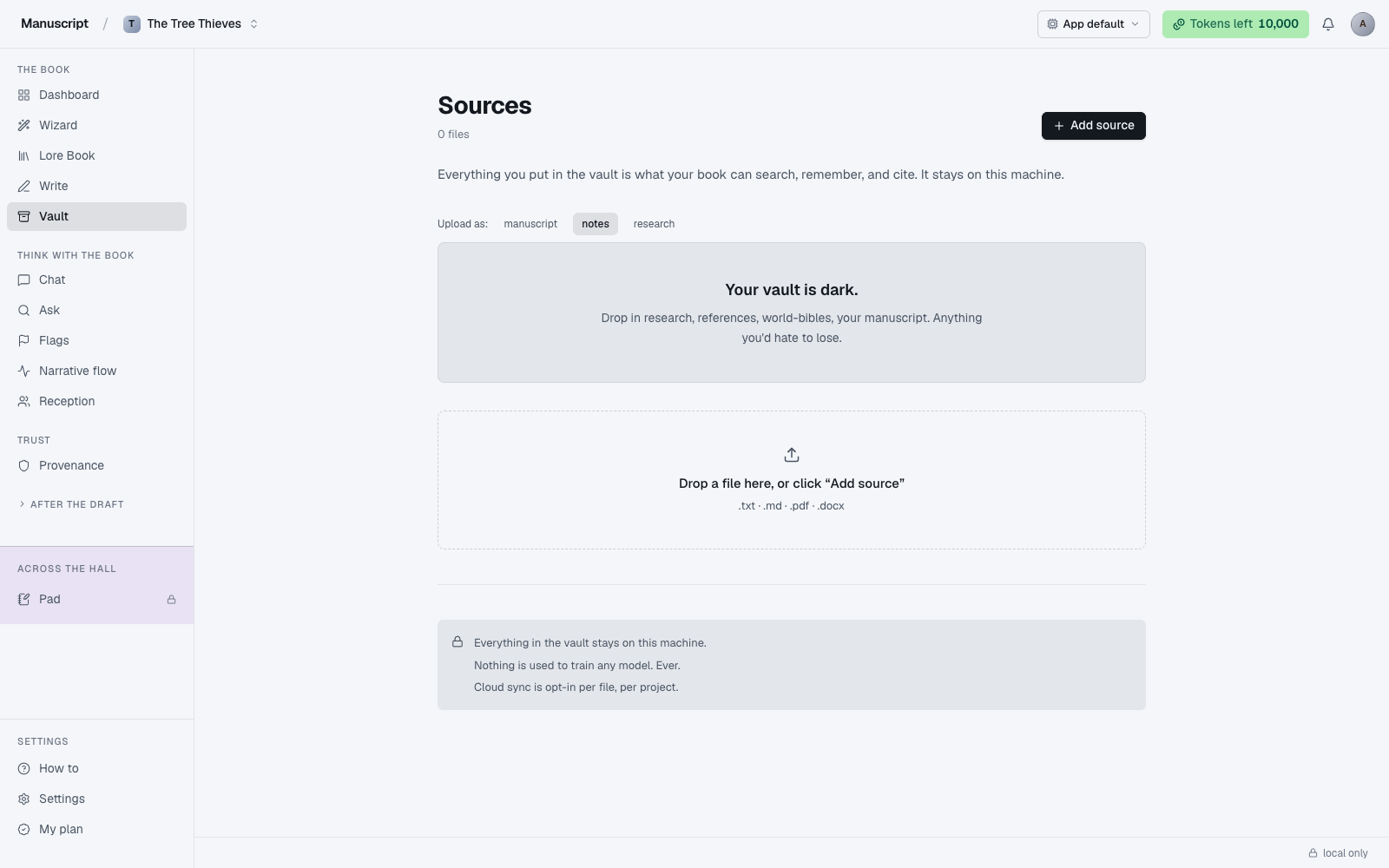
When you land on /vault, the page shows a Sources heading with a live file count in the top-right ("N files"), a primary Add source button next to it, then a paragraph explaining what the Vault does. Below that is a small pill selector — manuscript / notes / research — that tags what kind of source your next upload will be, defaulting to notes. Underneath is either the file shelf (grouped by kind) or an atmospheric empty state reading "Your vault is dark." with an invitation to drop in anything you'd hate to lose.
At the very bottom of the page is a small reassurance card with a lock icon reading "Everything in the vault stays on this machine. Nothing is used to train any model. Ever. Cloud sync is opt-in per file, per project." That's not marketing copy — it's the actual policy, enforced at the storage layer.
What you can upload
Four file types are accepted:
- .txt — plain text. Every double-newline becomes a paragraph boundary for chunking.
- .md — Markdown. Headings are preserved as structure so chunk boundaries align with sections.
- .pdf — text is extracted via
pdf-parseon the server. Complex layouts, columns, and images are dropped; only the linear text stream comes through. - .docx — Word documents. Headings and paragraph structure are preserved.
Anything else — .epub, .rtf, .pages, images, audio — is rejected client-side with a message pointing at the accepted list. If you have a source in an unsupported format, convert it first: Pandoc handles .epub and .rtf at the command line, and Word or Pages can save any of their native formats as .docx or .pdf.
If a PDF was scanned rather than exported from a document, the text extraction may be poor — page-by-page image OCR is not something we do server-side. Where possible, upload the source .docx or .md instead. If you only have the scanned PDF and no other option, run it through an OCR tool first (macOS Preview has one built in via the "Text Recognition" contextual menu; Adobe Acrobat has "Recognize Text") and upload the result.
How the Vault indexes your material
When you upload a file, three things happen on the server before the upload finishes:
- Parsed — the raw text is extracted from the file. PDFs go through
pdf-parse; DOCX files through a Word parser that preserves paragraph structure; TXT and MD are read directly with structure inferred from newlines and headings. - Chunked — the text is broken into paragraph-aware chunks of roughly 300 words each. The chunker respects paragraph boundaries; it never cuts mid-sentence or mid-paragraph if it can help it.
- Indexed — each chunk is added to the SQLite FTS5 full-text search index alongside your manuscript documents' paragraphs. The index sits in the same database as the rest of your project data.
That means when you go to Ask and search a phrase, results come from both your manuscript and your Vault sources, ranked together by BM25 relevance. If a phrase appears in an interview transcript in the Vault and in Chapter 4 of your manuscript, both surface in the result list — you can jump to whichever is more useful.
Nothing about the Vault is sent to a cloud service beyond the normal sync mirror that backs up your project. The FTS5 index runs locally in SQLite; no vector embedding service is called; no third-party search backend touches the material. That's a deliberate choice — FTS5 is much cheaper and much more private than an embedding API, and for the "did I already write this?" use case it's actually more accurate too.
When to use the Vault vs pasting into the Wizard's Q1
Both places accept text you want the AI to know about. The difference is durability, reach, and intent.
Use the Vault when:
- The material is reference you'll come back to over months of drafting — interview transcripts, historical background, character notes from a prior draft, research articles, comparative titles you're studying for voice.
- The material is long, and you don't want the Wizard trying to compress it into a seed. Anything over a few pages is a Vault candidate.
- You want to be able to search it later from Ask — "did the professor mention that quote in the interview?"
- You want Chat to be able to cite it when you're thinking out loud.
Paste into Wizard Q1 when:
- The material is short — an idea, a single paragraph, a few pages of freewriting.
- It's specifically the raw material you want the Wizard to use as the seed for this book — meta-notes about the story, not source material about the world.
- You don't need to search it later.
You can do both. Paste your sparks into Q1 to seed the book, and upload the long-form research into the Vault so you can consult it while drafting. Splitting things this way tends to produce the sharpest Wizard output (Q1 stays focused) and the most useful search index (the Vault holds the bulk).
Uploading
Open the Vault view. Pick the kind pill (manuscript / notes / research) that matches what you're uploading — this determines which group the file lands in on the shelf. Then either click Add source (top-right primary button) to open the file picker, or drag files onto the dashed dropzone near the bottom of the page. Multiple files upload in sequence; the top-right button flips to "Uploading…" with a spinner while each one is in flight.
Server-side, each file is parsed, chunked, and indexed as described above. Short files (a few kilobytes) finish in a second or two. A full-length prior draft or a long PDF takes 5–30 seconds — the chunking and FTS5 indexing scale roughly linearly with word count. You can leave the tab open and come back; the parsing runs to completion on the server, and if anything fails the error surfaces in a red banner below the pill row with a message like "Couldn't upload <filename>. Try a different file."
Once done, the file appears on the shelf under its kind group, showing the filename, its word count (or file size in KB/MB for empty-extraction cases like scanned PDFs), and a small "local" chip. Groups collapse and expand as you'd expect; a fresh Vault with only research documents won't show empty "manuscript" or "notes" headers.
Managing sources
Each row on the shelf shows the file icon (differs for Markdown, audio, and generic files), the filename, the word count in mono type, a "local" chip on the right, and — on hover — a trash icon at the far right. The row itself doesn't link to anything (the file is a searchable index target, not something you open and read here).
The three-dot menu from earlier iterations has been consolidated: today, delete is the only per-source action, and it's the trash icon. There's no rename in the current build — if you need to rename, delete and re-upload with the correct name.
Delete hard-removes the file, its chunks, and its FTS5 index entries after a native confirm dialog ("Delete this source? Its chunks will be removed from the index."). Deletion is immediate on the local database and propagates to the cloud mirror on the next sync. There's no undo — if you're not sure, keep the original file on disk before deleting from the Vault.
Vault sources vs manuscript documents
They're different things, and mixing them up is the most common Vault misconception.
- Your manuscript — the book you're writing — lives in the editor. Each document you see in the Write sidebar is part of your manuscript. Everything there gets exported when you export the book.
- Vault sources are reference material only. They never appear in the editor, never appear in exports of your book, and never mix with your prose in any way. They exist to be searchable context — nothing else.
If you upload an old draft into the Vault expecting to edit it there, it won't work that way. The Vault is index-only; there's no way to open a source in an editor. Instead, from the dashboard, use Upload book to import the draft as a new manuscript — see Dashboard. That path parses the same file formats but lands the content in the editor with structure preserved and paragraph IDs assigned.
The practical rule: if you want to read from it while writing, Vault. If you want to edit it, import as a manuscript.
What lives in the Vault by manuscript
Each manuscript has its own Vault. Uploading a file to the Vault while working on Book A doesn't make it searchable from Book B. That's the same strict isolation principle as the Lore Book — see Overview, Lore Book, and Outline — and for the same reason: cross-project bleed is almost never what you want. Your fantasy novel's interview transcripts about medieval blacksmithing have no business showing up in Ask results for your memoir.
If you genuinely do want the same source in two projects, upload it twice — once per project. The file lives twice on disk (small cost), the chunks land in two separate indexes (correct behavior), and neither project sees the other's data.
How to use it
- Click Vault in the left sidebar (labelled
V). The page opens with the header "Sources" and a meta count ("N files"). Below the intro paragraph you see an Upload as: row with three pill buttons - manuscript, notes, and research - defaulting to notes. - Pick the pill that matches what you're uploading. This tags the file's
kindso it groups correctly on the shelf. The active pill fills in solid. - To upload, either click Add source (top-right, the primary button) to open the file picker, or drag files onto the dashed Drop a file here dropzone near the bottom. Accepted types:
.txt,.md,.pdf,.docx. Multiple files upload in sequence. - Watch the top-right button - it flips to "Uploading..." with a spinner. Server-side the file is parsed (PDF via
pdf-parse), split into paragraph-aware chunks of ~300 words, and each chunk is added to the SQLite FTS5 index. Short files finish in a second or two; long PDFs take 5-30 seconds. - Once done, the file appears on the shelf under its kind group (manuscript / notes / research), showing the filename, word count (or file size for empty extractions), and a "local" chip. Groups are collapsible by kind.
- To search across your sources, open Ask. Every chunk you just indexed is now searchable with bm25() ranking - results include both your manuscript documents and your Vault sources.
- To delete a source, hover the row and click the trash icon on the right. A confirm dialog reads "Delete this source? Its chunks will be removed from the index." - click OK to hard-delete the file, its chunks, and its FTS entries.
- If a PDF import returns garbled text (scanned rather than exported), delete it and upload the source
.docxor.mdinstead - the extraction quality is much better.