What the dashboard is
The Dashboard is your shelf. Every manuscript you've started — whether you began it in the Wizard, uploaded it from a .docx, or created a blank project and started typing — lives here. Open one to enter that book's workspace; the rest of the sidebar (Write, Chat, Lore Book, Voice, Provenance) then operates on whichever manuscript you opened.
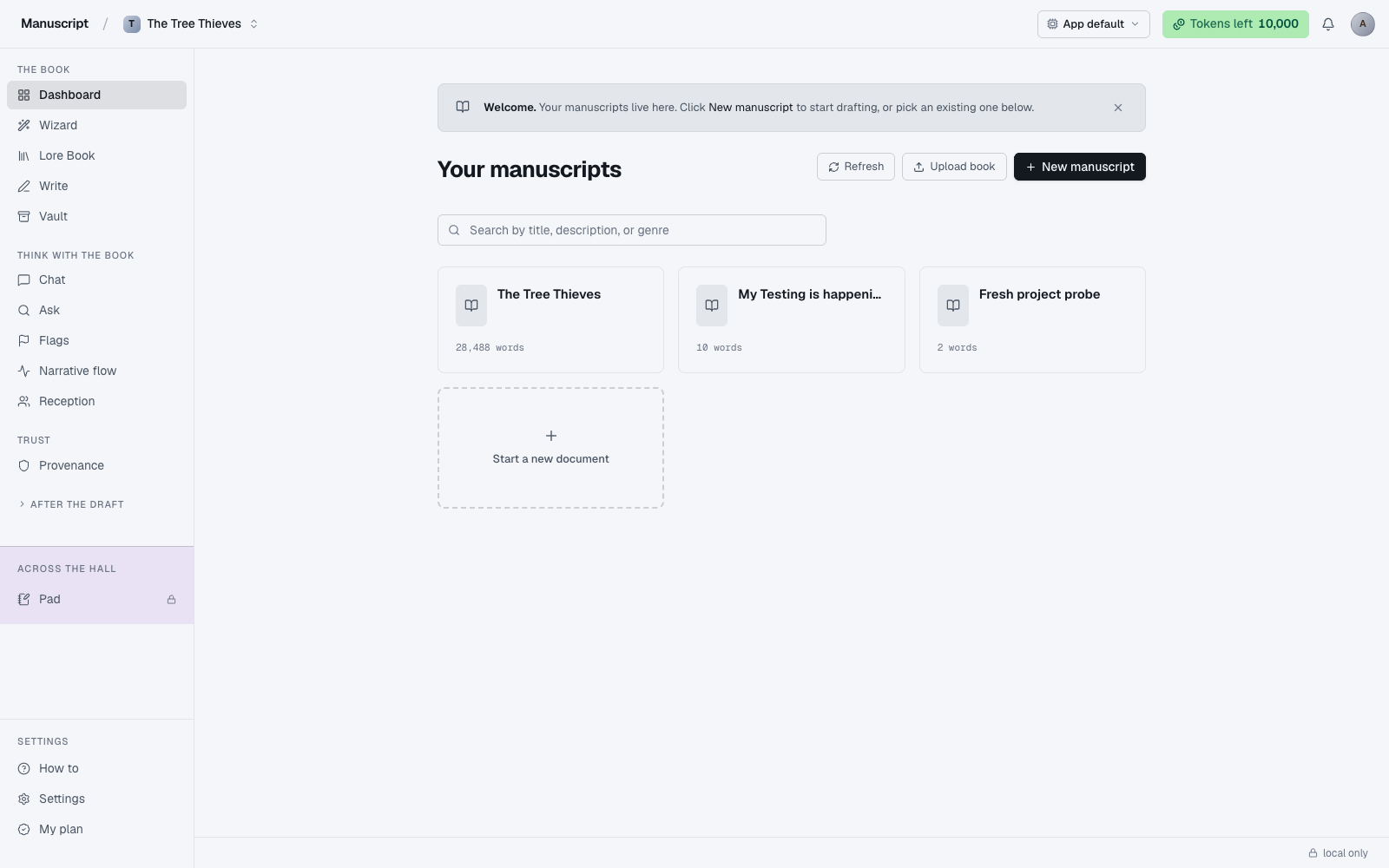
When you land on /dashboard, the page shows a Welcome banner across the top (dismissable, remembered per-browser), then a page heading — Your manuscripts — and a three-button action row on the right: Refresh, Upload book, New manuscript. A search field sits just below, and beneath that a responsive card grid: one column on phones, two on tablets, three on desktop widths.
Each card shows the book's title, its genre (small uppercase tag under the title), a two-line description, the current word count, and a relative "last updated" timestamp ("just now", "2h ago", "3d ago"). If the book has a cover image, it renders as a small 36×48 book-jacket thumbnail in the top-left of the card; if not, a book icon on a subtle background stands in its place. Hover any card and a three-dot menu (⋯) fades into the top-right corner with Rename and Delete options.
The dashboard loads once on page mount and holds the list in memory, so opening rename or delete dialogs and cancelling them doesn't trigger a re-fetch. If you edit on a second device — say, wrote a chapter on your laptop then opened the dashboard on your phone — click Refresh in the top-right to re-pull the merged local + cloud list. The refresh icon spins while it's in flight.
Manuscripts vs projects — the same thing, said two ways
Internally, every book you make is called a project. In the interface, we call it a manuscript. They mean the same thing. The word "project" leaks into a few places (API responses, the "active project" cookie), but everywhere a human sees it in normal use, it says "manuscript".
The important part is that each manuscript is fully isolated. Its own Lore Book, its own Outline, its own voice fingerprint, its own Provenance ledger, its own Vault sources. Nothing bleeds between manuscripts. If you're writing a fantasy trilogy in one project and a memoir in another, the fantasy's characters can't accidentally show up in the memoir's @-mention typeahead — the query is scoped to the currently-active project on every request.
This isolation is why opening a manuscript sets an "active project" cookie as a side effect. When you click a card, the dashboard first calls /api/projects/active to switch scope, then navigates to /write?doc=<id>. That two-step happens under 500ms in normal use, but it's why you might occasionally see a brief pause on the very first click after a long idle — the cookie switch has to land before the editor can hydrate correct data.
Starting a new manuscript
There are two ways to begin, and the choice is mostly about where the first paragraph will come from.
New manuscript (fresh)
Click New manuscript in the top-right (a filled button labelled with a + icon). The server creates an "Untitled" project, sets it as your active project, and lands you straight in Write with an empty document. There's no intermediate title-picker dialog — the "Untitled" title is a placeholder you'll rename later, either from the Overview page or via the ⋯ menu on the dashboard card.
Two paths lead out from this empty document. You can start typing prose directly — the editor is a serif surface built for long-form writing and you can just go. Or you can navigate to Wizard in the left sidebar first, which is the 10-step interview that seeds a full Lore Book, Outline, and optionally drafts chapters for you. Best if you're starting from a rough idea rather than a fully-formed vision. See The Wizard.
Either path creates the project, an empty Lore Book, and an empty Outline. You can add lore and outline entries at any point — nothing about the starting flow locks you into a shape.
Upload book (import)
Click Upload book (secondary button, next to Refresh) to import an existing draft. A file picker opens accepting four formats:
.txt— plain text, paragraph-separated by blank lines.md— Markdown; headings become chapter and scene structure.pdf— text is extracted; complex layouts and images are dropped.docx— Word documents; headings and paragraph structure preserved
The button label flips to "Importing…" with a spinner. Server-side, the file is parsed (PDFs via pdf-parse), split into paragraph-aware chunks, structure detected from headings (H1 → chapter, H2 → scene), and every paragraph is assigned a stable unique ID so Ask, Provenance, and the AI commands can reference it later. Short files finish in a second or two; a full novel takes 10–30 seconds. When it's done, you're routed to /write?doc=<id> with the imported manuscript open.
Note on PDF imports. PDFs are unpredictable. A cleanly-exported novel PDF (originally a .docx, exported to PDF via Word) usually comes through fine. A scanned photocopy or a book with a two-column layout will come through scrambled or empty — text extraction can't undo layout guessing. If your import looks wrong, delete it from the dashboard, find the source .docx or .md, and upload that instead.
Working with an existing manuscript
Each card on the shelf offers three interactions:
- Click the card body to open the book. The dashboard sets the active-project cookie first, then navigates to
/write?doc=<id>— typically under 500ms. You land in the editor on the most-recent document in that project. - Hover the card, then click ⋯ in the top-right to reveal the actions menu with Rename and Delete.
- The card also passes its "last updated" info back visually — the timestamp on the card ticks forward as you edit, and moving a card to the top of the grid happens automatically after your next dashboard refresh.
Rename opens the "Edit manuscript" dialog with a title field on top and an "Edit genre & description →" link that reveals two more fields (genre + description) when clicked. Save updates the title (and optionally the genre and description) across the local library and the cloud mirror. The title change updates on this page and on the top-right title chip in every workspace surface. The book's contents are untouched — this is a metadata edit only.
Delete opens a small confirmation modal reading "Delete <title>. This can't be undone." Confirming hard-deletes the manuscript, its Lore Book entries, its Outline, its Provenance ledger, its Vault sources, and every chat thread and template run scoped to it. There's no trash can, no soft-delete recovery. If you're not sure, export the manuscript first (see Write's Export section).
The current manuscript
Only one manuscript is "current" at a time — the one you last opened from the dashboard. Every workspace surface (Write, Chat, Ask, Lore Book, Voice, Provenance, Flags, Templates, Desk, Atomize) operates on the current manuscript. If you have three books going, switch between them via the dashboard; there's no top-level project switcher elsewhere in the app (the top-right shows the current title but isn't a picker).
The reason it works this way is that swapping active project is a nontrivial operation — it changes what lore comes back from /api/lore, what documents show in the sidebar, what the voice fingerprint injects, what Provenance's ledger covers. Doing that in a dropdown that could fire at any moment invited too many "wait, why did my chat thread disappear?" bugs. Going back to the dashboard to switch makes the boundary visible.
When to make a second manuscript
Make a new manuscript when:
- You're starting a genuinely different book. Different lore, different voice, different genre. Sharing a project across two books means their lore will clutter each other's
@-mention typeahead and their voice fingerprints will average out into mush. - You want to try a rewrite from scratch without disturbing the original. A second project lets you keep both drafts side by side. When you're done, you can decide which one to keep — or export both.
Don't make a new manuscript when:
- You want to try a different opening chapter. Write it inside the existing project as a second document and keep both drafts in the Outline. The editor supports multiple documents per project by design.
- You're just experimenting. The main manuscript autosaves and versions everything through Provenance; there's no risk of losing your draft by trying a rewrite. Duplication invites drift; better to explore inside the one project and use Provenance to walk back if needed.
How to use it
- From any page, click Dashboard in the left sidebar (icon labelled
DB). The page loads with a "Welcome" banner and a card grid of every manuscript you own. - To read stats on an existing book, look at each card - it shows the title, genre (small uppercase), a short description, the word count, and how long ago it was updated ("just now", "2h ago"). Hover a card to reveal the ⋯ three-dot menu in the top-right corner.
- To search across your shelf, type into the Search by title, description, or genre box near the top. The grid filters live; a "No matches." line appears if nothing matches.
- To jump into the editor on an existing book, click anywhere on the card body. The dashboard sets the active-project cookie first (so the right rails load correct data), then navigates to
/write?doc=<id>- typically under 500ms. - To start fresh, click New manuscript (top-right, the filled button). A new "Untitled" project is created and you're dropped straight into
/writewith an empty document. Wait 1-2 seconds for the spinner. - To import an existing draft, click Upload book (top-right, next to Refresh). A file picker opens accepting
.txt,.md,.pdf,.docx. Pick the file - the toast reads "Importing filename..." and you land in the editor once parsing finishes (a few seconds for short files, longer for full novels). - To rename or delete, hover a card and click the ⋯ menu. Pick Rename to open the "Edit manuscript" dialog (title, plus a "Edit genre & description →" link for the advanced fields), or Delete to hard-delete after a confirmation dialog.
- If your dashboard looks stale (e.g. you edited on another device), click Refresh (top-right) to re-pull the merged local + cloud list.
What to read next
- The Wizard — for a fresh manuscript from an idea
- Vault — for adding reference material (research notes, interview transcripts, other drafts) to an existing manuscript
- How your data works — for the sync and multi-device behavior