What Templates is
Templates is a curated library of pre-built AI runs for the tasks authors actually repeat — rewriting a passage, sharpening a hook, punching up dialogue, sketching a chapter title, drafting a synopsis. Every template is a small, purpose-tuned prompt with its own input form and system prompt, chosen so the output is shaped for the specific job rather than for open-ended generation.
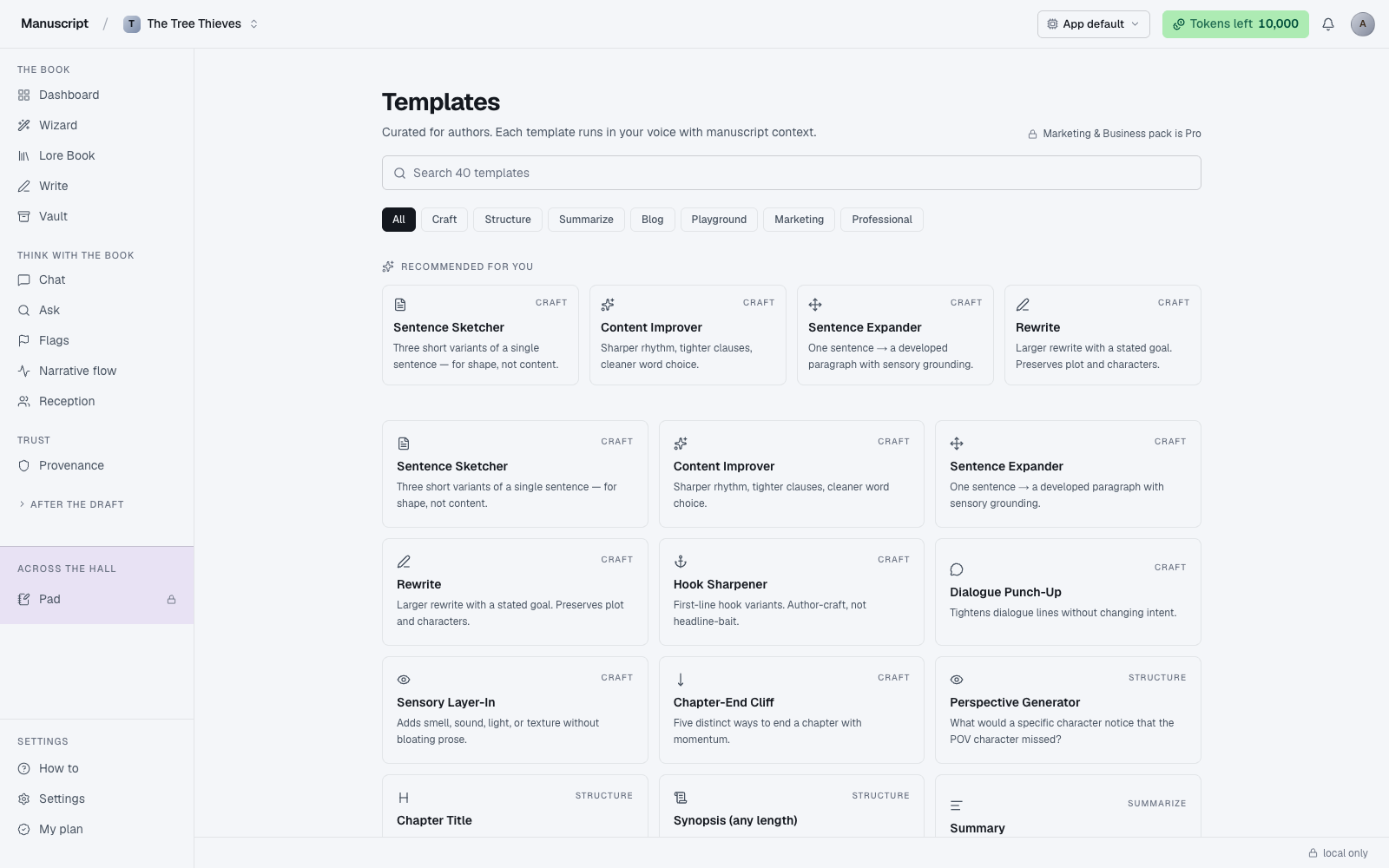
You land on a subtitle that reads "Curated for authors. Each template runs in your voice with manuscript context." That's the two-sentence design brief: everything here is fiction-first, and everything here respects the voice fingerprint if you've generated one. The library is split into two packs — the Author Pack (18 templates, visible by default) and the Marketing & Business Pack (22 templates, hidden behind a Pro lock). The Author Pack is what most novelists will spend time in.
Every template runs through the same OpenRouter pipeline as the 12 inline AI commands in Write — the difference is that a template gives you a dedicated form, a named category, and a persisted history you can revisit. Output lands in a side-drawer, not in your manuscript. That's deliberate: nothing here auto-inserts, so a template run is always a decision to look at first and copy in second.
Three templates that appeared in an early vendor list were cut before shipping: AI Book Writer, Complete Story, and Storyteller Mode. They were whole-cloth prose generators — feed a title, get a book — and they violate the rule that AI never writes your prose without you asking paragraph by paragraph. If you're looking for something like that, the closest sanctioned paths are the Wizard's chapter drafting (which goes through the accept flow) or Write's Continue command on a selection.
The Author Pack (18 visible)
The Author Pack is the default view. It groups the 18 fiction-oriented templates by kind so you can find the right tool by the shape of the problem: craft (sentence-level), structure (chapter/manuscript-level), summarize (compression), and blog/playground (open-ended). Category chips at the top of the page let you narrow to one kind at a time; the recommended rail above the grid pulls in your most-used cards so common workflows stay one click away.
Every card in the Author Pack is unlocked on the Free plan. Click a card to open the runner drawer; fill in the form; hit Run. No credits, no per-template pricing — just your normal weekly token budget.
Craft (8 templates)
Craft templates work at the sentence and paragraph level. These are the closest cousins of the inline AI commands in the editor — the difference is that a template gives you a dedicated field for the passage and often extra controls (number of variants, target register, target length) that the BubbleMenu doesn't expose.
- Sentence Sketcher — write several versions of a sentence in different registers
- Content Improver — tighten a passage without changing meaning
- Sentence Expander — take a short sentence and open it into a paragraph
- Rewrite — a fresh take on a passage
- Hook Sharpener — make an opening or closing land harder
- Dialogue Punch-Up — sharpen dialogue lines
- Sensory Layer-In — add sight, sound, texture, smell to a passage
- Chapter-End Cliff — write a sharper end-of-chapter hook
Use these when you need to iterate on a specific passage without touching the editor state. Sentence Sketcher especially — asking for five versions of the same line and picking the one that fits is faster than manually rewriting six times in place.
Structure (3 templates)
Structure templates operate at the manuscript or chapter level. They read broader context than the craft templates and produce output shaped for planning rather than for lines of prose.
- Perspective Generator — rewrite in a different POV (first to third, present to past, etc.)
- Chapter Title — propose titles for a chapter based on its content
- Synopsis — draft a synopsis from your book's contents
Perspective Generator is the one to know: shifting a whole scene from first-past to third-close (or vice versa) by hand is tedious, and the template does the boilerplate transformation in one pass. You still edit heavily afterward — pronouns are only the start — but it's a much better starting point than a blank page.
Summarize (3 templates)
Summarize templates compress or transform an input rather than expand it. Useful for outreach, for pitch prep, and for the moments when you need to explain a passage without quoting it.
- Summary — short summary of a passage
- Explain To A Child — plain-language explanation of a complex passage
- Translate — translate a passage into another language
Translate is worth knowing about even if your book is English-only: many authors need a foreign-language line inside dialogue and the template returns something more contextually appropriate than a generic web translator.
Blog and Playground (4 templates)
Three blog-style templates for authors maintaining a public presence (newsletters, essays, promo posts of the kind you'd write on your own site rather than a social feed) and one playground template for open-ended prompting when nothing else fits. The playground is deliberately loose — treat it as a scratchpad rather than a shaped tool.
The Marketing & Business Pack (22 hidden)
The Marketing & Business Pack is behind a Pro lock. On the Free plan, its 22 cards render with a small Pro badge in the top-right corner; clicking one opens the upgrade prompt instead of the runner. Once you're on Professional, the cards work identically to the Author Pack.
They're hidden by default because they're not craft — they're LinkedIn posts, product descriptions, ad copy, meeting summaries, and other business writing. Useful for some authors (the ones running a small press, coaching business, or heavy platform strategy), noise for most fiction-first users. The header shows a small "Marketing & Business pack is Pro" note as a hint that they exist.
- 14 marketing templates — LinkedIn, Twitter, ad copy, product descriptions
- 8 professional templates — emails, memos, meeting summaries
If you want cross-channel promotional drafting for your book specifically (newsletter, LinkedIn post, Twitter thread, IG caption, ad hooks) as a single one-click run, Atomize / Echoes is the right surface — it's built for exactly that fan-out from a chapter or scene. Templates here are for one-off drafts.
Running a template
Click any card and a 640-pixel side-drawer slides in from the right. The drawer header shows the template's icon, its label, a small category eyebrow ("Craft", "Structure", "Summarize", etc.), and a close X. Below the header sits the template's description (a sentence about what it does) and its input form.
Every template has its own fields. Broadly there are two kinds:
- Content-in fields — a textarea where you paste the passage the template will operate on (marked with an asterisk if required)
- Kind-specific fields — for Perspective Generator, a select for the target POV; for Translate, a select for the target language; for Sentence Sketcher, a number for the count of variants
Fill in the fields, then click Run in the drawer footer. The button shows a spinner and reads "Running…" while the AI generates — typically 3 to 10 seconds depending on template and passage length. If you hit your token limit mid-run the drawer surfaces "Out of tokens — upgrade to run this template, or wait for your weekly limit to renew" and the upsell modal opens automatically.
When the output arrives it renders inside an Output panel below the form, with a Copy button in the panel header (which briefly reads "Copied" after a successful click). If the output belongs in your manuscript, copy it into Write and route it through the accept-suggestion flow — that's the only path that logs it to Provenance. Templates deliberately don't insert into the manuscript directly.
Recent runs
Every template run is saved to a Recent runs list at the bottom of the page. Each row shows the template label, the first 140 characters of the output, and a relative timestamp ("2m ago", "3h ago"). Click any row and the drawer re-opens with your original inputs pre-filled — the AI does not re-run, no tokens are spent, and the historical output is preserved.
This is more useful than it sounds. When you find a template + input combination that works well, you'll want to reference that exact output later — either to copy again, or to see what settings you used. Recent runs is that reference.
The Recent list also feeds the Recommended for you rail at the top of the page: your four most-recently-run templates appear as compact cards there, with Author-pack defaults filling any remaining slots. So common workflows stay reachable without scrolling or searching.
Recent runs are per-manuscript. What you templated in your fantasy novel doesn't appear when you switch to your memoir; each project has its own template history.
What Templates does not do
Templates never writes into your manuscript automatically. Output lives in the runner drawer until you copy it out — and even then, the only path that gets logged to Provenance is pasting through the editor's accept-suggestion flow. If you paste the output directly into the ProseMirror surface as regular text, it's recorded as your typing.
Templates does not chain. Each run is standalone. If you want a passage rewritten in a different POV and then translated, run Perspective Generator first, copy the output, then run Translate on that. There's no pipeline builder.
Templates does not share history across manuscripts. Recent runs are scoped to the current project — the same reason your Lore Book and Outline are project-scoped. If you use Sentence Sketcher heavily on Book A, opening Book B shows an empty recent list.
Voice fingerprint and Templates
Every template respects your voice fingerprint. If you've generated one and left it on, every AI call the template makes — every rewrite, every synopsis, every LinkedIn post — is shaped by the profile. That includes the marketing pack: a LinkedIn post drafted here will sound like you, not like default AI voice.
Templates is one of exactly four surfaces where voice injection happens (the others are the 12 inline commands in Write, the four kinds of Desk drafts, and every channel in Atomize). The Voice page docs the full list.
If you're seeing generic-sounding template output, check the toggle on the Voice page. The profile may exist but the switch may be off — that's a common source of the "why does this sound like every other AI?" surprise.
What's not here
Three templates that appeared in an early vendor draft were cut before shipping: AI Book Writer, Complete Story, and Storyteller Mode. All three were whole-cloth prose generators — feed a title or a premise, get back a full book. They violated the wall rule (AI writes prose into your manuscript only when you explicitly ask, paragraph by paragraph, through the accept flow).
If you were looking for something like that, the closest sanctioned paths are the Wizard's chapter drafting step — where the AI does draft prose, but every accepted paragraph is logged to Provenance — or Write's Continue command, which extends from where you last stopped and lets you accept or reject each addition. Both go through the accept flow. Templates deliberately doesn't.
How to use it
- Click Templates in the left sidebar under "After the draft". The page loads with the header Templates, a subtitle ("Curated for authors. Each template runs in your voice with manuscript context."), a search box, and a row of category chips (All, Craft, Structure, Summarize, Blog, Playground, and — if you're on Pro — Marketing and Professional).
- Browse the Recommended for you rail at the top (populated from your recent runs, with Author-pack defaults filling any gaps), type into the search box to filter by name or description, or click a category chip to narrow the grid below.
- Click any template card. A 640px side-drawer slides in from the right with the template's icon, name, category eyebrow, description, and its kind-specific input fields. Marketing & Business cards show a small Pro lock badge and open the upgrade prompt instead if you're on Free.
- Fill in the fields (required ones are marked with an asterisk — paste your passage into the content textarea, pick a target from any select fields like POV or language). The footer reminds you: "Runs save to Recent runs. Output never auto-inserts into your manuscript."
- Click Run in the drawer footer. The button shows a spinner and reads "Running…" for a few seconds (usually 3–10s depending on template and passage length).
- When it finishes, an Output panel appears below the form with the generated text. Click Copy in the panel header to copy it to your clipboard (the button briefly reads "Copied"). To use the output in your manuscript, paste it into Write and route it through the accept-suggestion flow so Provenance logs it.
- Close the drawer by clicking the X in the top-right or clicking outside it. Your run is saved to the Recent runs list at the bottom of the page — click any recent row to reopen the drawer with your original inputs pre-filled.
What to read next
- Voice fingerprint — the switch that changes what every template sounds like
- Desk — for query letters, synopses, blurbs, and newsletters (dedicated surface, not a template)
- Provenance — for the record of what template runs made it into your manuscript