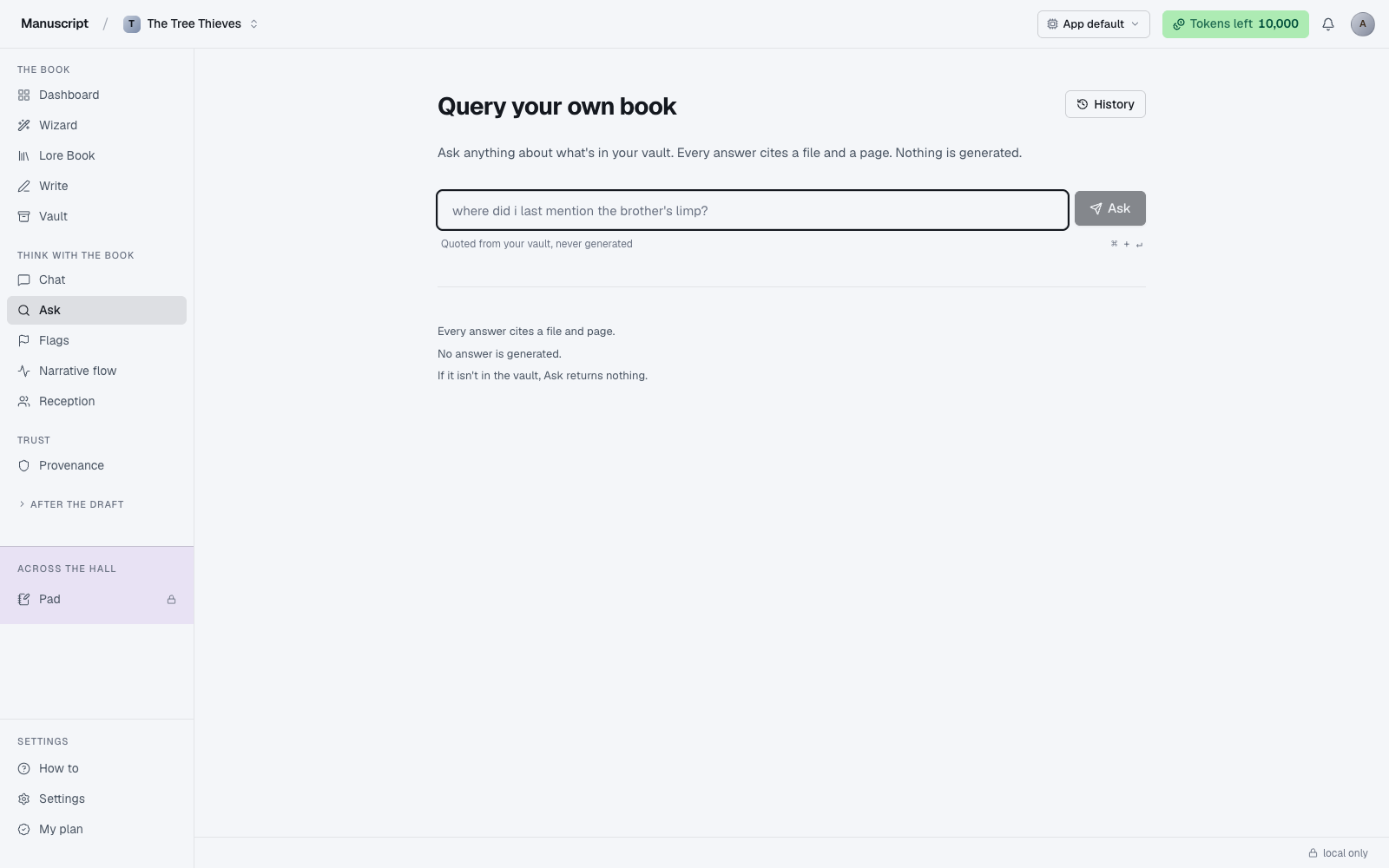
What Ask is
Ask is a search box for your own manuscript and Vault. You type a phrase, press Enter, and the passages that match come back in a list — ranked by relevance, with the matching terms highlighted inside a snippet of surrounding context. It's the fastest way to find something you know you wrote but can't remember where.
It's plain search, not a conversation. Nothing is generated, and no AI tokens are spent. The page even prints the promise out loud under the search bar: "Quoted from your vault, never generated." Ask returns what's there or returns nothing — it doesn't paraphrase, guess, or invent a source.
Because Ask doesn't call an LLM, it's the cheapest surface in the app to hit repeatedly. Use it as your default "where did I say that?" tool, and reach for Chat only when the question needs actual reasoning.
The results come back in a few hundred milliseconds — the elapsed time prints in a monospace chip on the right of the results header (e.g. 42ms) so you can watch it stay fast even as your manuscript grows.
What it searches
Ask looks across two things:
- Your manuscript — every paragraph in every document in Write, indexed as you type
- Your Vault sources — every uploaded file in the Vault, indexed at upload time
Both flow into the same full-text search index (SQLite FTS5, if you're the kind of person who wants to know). Results are ranked by a relevance score using the BM25 algorithm, so the strongest textual matches come first, not the most recent. A single query returns results from both the manuscript and the Vault in the same list — you can see at a glance whether a phrase you wrote in your draft echoes something you researched.
Every result card shows three things:
- The source on the left — the file name (for Vault matches) or the document title (for manuscript matches), with a small file icon.
- The page/paragraph reference on the right in a monospace chip — a page number for PDFs, a paragraph reference for text sources and manuscript documents.
- The snippet below — a short passage with your matching terms highlighted in an amber background (the same warning-bg color used elsewhere in the app). The snippet is built by SQLite's
snippet()function, so it centers on the match and gives you a sentence or two of context on each side.
Clicking any card jumps to the passage: for manuscript matches, straight into Write on the paragraph; for Vault matches, opens the source in the Vault viewer.
When to use Ask vs Chat
Use Ask when you know roughly what you're looking for and just want to find the passage. It's a lookup tool.
- "Where did I first mention the lighthouse?"
- "Have I used the word 'shimmer' more than twice?"
- "What did I write about the sister's diary?"
Use Chat when you have a question that needs reasoning across multiple passages, or when you want the AI to synthesize, compare, or argue.
- "Is the sister's diary consistent across the three times it comes up?"
- "Does what I've written about the lighthouse contradict the location described in chapter 2?"
Ask is faster and free of AI tokens. Chat is slower and costs tokens, but does the reasoning for you. Most authors end up using Ask ten times a day and Chat a handful of times a week — Ask is the search box you keep coming back to, and Chat is the surface you open when a question resists a simple lookup.
Search operators
Ask uses SQLite's full-text search syntax under the hood. You don't have to know the syntax — plain words work fine — but a few operators are worth remembering:
- Multiple words —
lighthouse diaryfinds paragraphs where both words appear (implicit AND) - Exact phrase —
"the lighthouse at dawn"in double quotes finds that exact string, with the words in that order - Prefix match —
shimmer*matches shimmer, shimmering, shimmered, shimmery, and any other word that starts with the same letters
For most searches you can just type the words you're looking for. The exact-phrase syntax is useful when common words would flood the results ("the man" as an exact phrase vs the man as a two-word query); the prefix syntax is useful when you're not sure of the tense or form of the word you wrote.
If Ask couldn't parse your query as valid FTS syntax, the empty-state card shows exactly the query it tried to run in a monospace font — so you can see what to adjust.
What Ask does not do
- It doesn't fuzzy-match. "shimering" won't find "shimmering" — spell it right or use a prefix like
shimmer*. - It doesn't understand synonyms. Searching "hush" won't return "quiet"; searching "car" won't return "vehicle".
- It doesn't reason about your book. That's Chat's job.
- It doesn't rewrite your query for you. What you type is what it searches for.
If you want conceptual search — "find every scene that feels sad" — you want Chat with whole-book scope, not Ask. Ask is a matching tool; it can only find text that literally contains the words you typed.
The empty-results state is honest about this. If no matches came back, the card reads "Nothing in your vault matches that", explains that Ask returns nothing rather than guessing, and prints the exact FTS query it tried so you can see whether your query got tokenized the way you expected. Retype with different keywords or a prefix wildcard — don't assume the passage doesn't exist just because your first phrasing missed it.
History
Every search you run is logged locally so you can see recent queries in your Ask history. When the input is empty (no active search), a recent list appears below the search bar showing your last several queries with the match count next to each one. Click any recent query to instantly re-run it.
This makes it easy to re-run a common check ("did I use 'suddenly' too much again?") without retyping the query, and it's useful for tracking whether the counts are moving in the direction you want as you revise. If "suddenly" was 14 matches last week and 3 matches this week, your revision is working.
The History button in the top-right opens a fuller view of past searches if you want to review the pattern of what you've been looking for.
Ask across manuscripts
Ask searches within the current manuscript only. If you have two books going, switch manuscripts from the Dashboard to search the other one. That's the same isolation principle as the Lore Book, the Vault, and Chat threads — projects are watertight, so a search from your fantasy novel won't leak results from your memoir.
If you're not seeing results you expected, first check which manuscript is active (the top-right title chip in the app shell). It's the single most common cause of "why isn't this finding anything" — the passage exists but it's in a different project.
Common uses
- Continuity checks. "Did I say the house had two stories or three?" Ask returns every mention; you compare.
- Word audit. "How many times have I written 'suddenly'?" The match count is your answer.
- Finding a passage from memory. "There's a line about the compass — where?" Ask puts you on the paragraph in one click.
- Reading against your Vault. Search a phrase from a research note and see whether it's crept into your prose verbatim — a subtle way to check you haven't accidentally quoted a source.
- Naming audits. "Did I ever settle on Ada or Aida?" Every occurrence of both, in one list.
Ask isn't glamorous. It's the boring search box every writer needs, sitting where you can reach it — no LLM latency, no token cost, no synthesis, just what's there.
How to use it
- Click Ask in the left sidebar under "Think with the book". The page opens with the title Query your own book and a search input already focused.
- Type your query into the search box — plain words work, or use
"exact phrase"in quotes for a literal string, or a trailing*for a prefix match (e.g.shimmer*). - Press Enter (or click the Ask button; Cmd+Enter also submits). The button flips to "Asking…" with a spinner while the search runs.
- Results appear below within a few hundred milliseconds. The timing shows on the right (e.g.
42ms), and above the list you see a count like "12 matches". - Each result card shows the source file name, the page/paragraph reference in monospace on the right, and a snippet excerpt with your matching terms highlighted in amber. Click a card to jump to the passage in the editor (for manuscript matches) or open the Vault source.
- If no results, the page shows a calm empty card "Nothing in your vault matches that." with the exact FTS query it tried — retype with different keywords or a prefix wildcard.
- When the input is empty, a recent list appears below showing prior searches with their match counts. Click any recent query to re-run it. Every search is logged automatically.