What Reports is
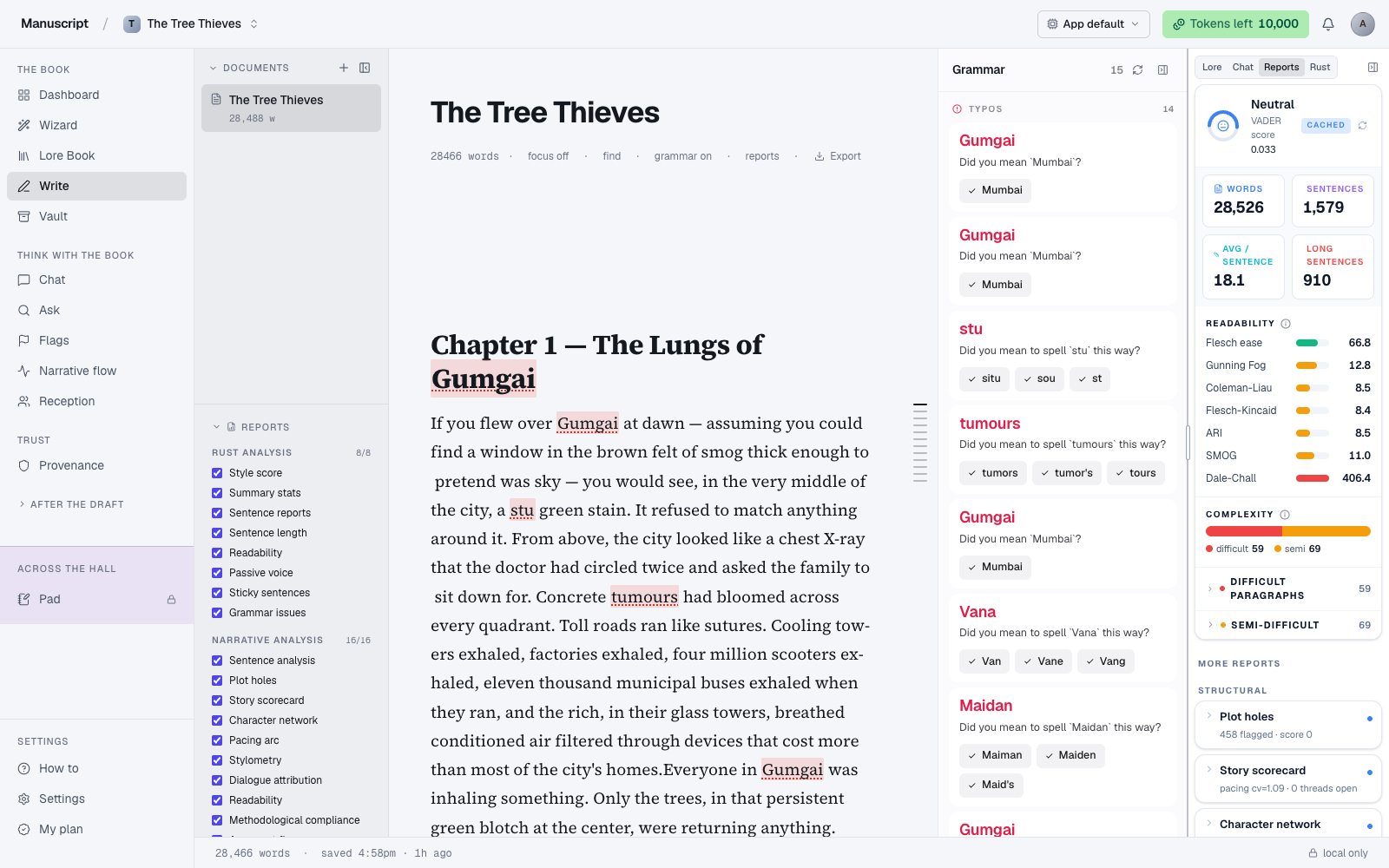
Reports is the analysis rail that sits beside your manuscript in Write. It's the drawer where you get numbers, colour-coded highlights, and structural read-outs on prose you've already drafted — pacing curves, sentence-level style tells, worldbuilding contradictions, thematic threads, readability scores. Twenty-plus cards, grouped into an LLM-driven tab and a statistical / Rust-driven tab.
Every report is observational. Nothing here rewrites your prose. No AI drops a suggestion into the editor from a Reports card. No auto-fixes. Reports paint highlights, show numbers, list findings. What you do with them is your call, every time — and because nothing here writes into the manuscript, nothing here contributes to your Provenance percentage.
The rail is designed to be a companion to a revision session, not a nag panel. Open it when you're ready to look at the numbers; close it (or collapse specific cards) when you'd rather write without them in your peripheral vision. Cards remember their expanded/collapsed state per document, so the setup you had yesterday is the setup you get today.
Two families in one panel
Some cards run on our own servers with our own analyzers (LLM-driven narrative analyses — plot, pacing, character, theme). Others call out to a Rust-native analysis service at analysis.manuscripts.ai — a specialised engine that does dependency-parse-based sentence work (style score, passive voice, glue index, sentence length) that we haven't reimplemented locally. From your point of view they're just "reports" — the split only matters when something goes wrong or when you see a truncation pill ("stats over 50,000 words of a 90,000-word manuscript").
The rail has two tabs so you can pick which family you're looking at: Reports (LLM-driven) and Rust (statistical). You'll usually spend more time in Reports for a first-pass revision (the narrative-shape stuff is more interesting when the draft is still finding itself) and more time in Rust for a copy-edit pass (the sentence-level metrics matter more when the shape is set).
Whole-manuscript reports — the higher-level analyses. They read your whole book, build an internal model of it (characters, chapters, threads, themes), and return structured findings.
- Sentence analysis — the pinned hero, always at the top of the panel
- Plot holes — continuity contradictions
- Story scorecard — threads closed + pace-shift map
- Character network — who interacts with whom
- Pacing arc — tension curve across chapters
- Stylometry — how distinctive your vocabulary is
- Dialogue attribution — is the speaker always clear?
- Readability — grade level, second opinion
- Methodological compliance — for academic writing
- Argument flow — for nonfiction
- Thematic analysis — what your book is actually about
- Literature synthesis — citation density
- Narrative predictability — surprise-per-sentence
- Worldbuilding stability — internal rule contradictions
- Lexical diversity — vocabulary variance
- Semantic arc — theme trajectory
Rust reports (sentence-level). Fast, deep linguistic analyses via the Rust service.
- Style score — overall composite + 15 metric breakdown
- Summary report — dense multi-panel snapshot
- Sentence reports — per-sentence analysis (same engine as Sentence analysis)
- Sentence length — histogram + variety score
- Readability (Rust) — four formulas + difficult paragraphs
- Passive voice — passives, hidden verbs, adverbs, style tells
- Glue index — sticky-sentence detection
- Analyze — grammar/style issues with suggested rewrites
How to run them
Open Write on the manuscript you want to analyse. The Reports rail lives on the right side of the editor. Some reports run automatically the first time you open the panel (with a "cached" badge if results are already available from a previous session); others sit collapsed with a Run button so you're in control of when the tokens are spent.
Rust reports run against the document in parallel, two at a time. The upstream service rate-limits large bursts, so we deliberately keep the concurrency low to stay well under the limit and avoid a burst getting throttled halfway through. On a novel-length manuscript, expect the full sweep to take 30–90 seconds. Results appear card-by-card as they arrive — you don't have to wait for everything to finish before you can act on the first one that comes back.
Reports cost tokens from your weekly budget — see Tokens. Rust reports are treated as a Pro perk when your weekly bucket is empty: you can still run them on the Free plan, but only while you have tokens left in the week. Once you're out, Rust reports become upgrade-gated until your bucket renews. LLM reports work the same way — they draw from the same weekly budget and stop when the bucket is empty.
Results are cached per document. If you re-run without changing the document, the second run pulls from cache and shows the "cached" badge instantly — no tokens spent. Cache invalidates on document edits, so a revision session naturally re-runs the reports the next time you open the panel.
Reading the highlights
Many report cards paint colour-coded highlights into the editor when you expand them or click a specific finding. A different colour layer per report type — passives get purple, sticky sentences get red, difficult paragraphs get amber, dialogue-attribution issues get a marker in the margin, and so on. Highlights are visible as long as the card is open and the focused finding is selected; close the card or collapse the section and the layer clears automatically.
Highlights are non-destructive — they don't change your text. They're rendered as ProseMirror decorations layered on top of the document, which means they can't accidentally leak into an export or into an autosave. If you're distracted by them, close the section or scroll to a different chapter; the underlying prose is unchanged.
Clicking any specific finding in a card ("this passive verb", "this difficult paragraph") scrolls the editor to the exact span and pins the highlight so it's easy to see even in a wall of text. This is how you'd use the rail in practice — read the summary, click the specific findings that matter, jump into the prose to revise, then come back to the rail to continue.
When to run what
Twenty-plus cards is a lot. This table is the fast lookup for "I want to know X — which card answers X":
| You want to… | Run… |
|---|---|
| See the shape of the whole book at a glance | Pacing arc + Semantic arc |
| Find continuity mistakes across chapters | Plot holes |
| See who's in the book together | Character network |
| Get a comprehensive one-card snapshot for an editor | Summary report |
| Check that your prose still sounds like you (not AI) | Stylometry |
| Find the specific sentences that drag | Sentence analysis + Sentence length + Glue index |
| Do a targeted passive-voice pass | Passive voice |
| Check grade level for your audience | Readability + Readability (Rust) |
| Copy-edit a specific 1,500-word section | Analyze |
| See what themes your book keeps returning to | Thematic analysis |
| Check the world's internal rules for contradictions | Worldbuilding stability |
| For academic nonfiction | Argument flow + Methodological compliance |
| For research nonfiction | Literature synthesis |
What Reports doesn't do
Reports don't rewrite your prose. Every finding is observational — a highlight, a number, a suggestion in words. Accepting or rejecting a suggestion is your call, always. Nothing here counts toward your Provenance percentage, because nothing here is AI-generated text landing in the manuscript. The only way AI text enters your book is through the accept-suggestion flow in the editor's BubbleMenu; Reports is on the other side of that boundary.
Reports don't auto-refresh. When you revise, the numbers you saw yesterday are still yesterday's numbers until you re-run. That's deliberate — running the full sweep costs tokens, and we'd rather you decide when to spend them than surprise you with a bill after every keystroke. Cards go stale (with a badge indicating so) when the underlying document changes; a fresh run replaces the cached results.
Reports don't share data with third parties. The Rust upstream is our own service, running in our infrastructure at analysis.manuscripts.ai. Your prose leaves your device to be analysed and the response comes straight back to you; nothing is retained upstream after the response returns. See Privacy for the wider posture.
How to open the reports rail
- Click Write in the left sidebar to open the editor.
- Open the document you want to analyze — click its title in the docs sidebar on the left.
- On the right side of the editor, find the rail. On a desktop (2xl+) it's already open; on a smaller laptop it's a 36px collapsed stripe — click the panel icon on the stripe to open it. On mobile, tap the Reports button (the bar-chart icon) in the top toolbar of the editor to open the rail as an overlay.
- In the rail header you'll see a tab strip with four tabs: Lore, Chat, Reports, and Rust. Click Reports for the LLM-driven narrative analyses (16 cards) or Rust for the statistical readability + style analyses from the Rust engine (composite cards with 8+ metrics).
- Reports auto-run against the current document. Cached results appear instantly with a "cached" badge; fresh runs stream in card-by-card and take 5–20 seconds each. Rust reports run two at a time in parallel and the full sweep takes 30–90 seconds on a novel.
- Click any collapsed card to expand it and see the full breakdown. Some cards paint colour-coded highlights into the editor when expanded — close the card to clear them.
What to read next
- Write — the editor where the Reports panel lives
- Flags — the AI-driven diagnostic pass, a sibling of Reports (Reports use analyzers; Flags uses the LLM)
- Narrative Flow — a dedicated deep dive on the pacing-arc report
- Deep Analysis — the reader-simulation feedback pass
- Tokens — the weekly budget Reports draw from