What Chat is for
Chat is the surface where you think out loud with an AI that knows your book. It reads your manuscript, your Lore Book, and (when the scope is set that way) your Vault sources, and it holds a conversation with you about them. You ask questions about your characters, work through a plot problem, argue with the AI about whether your ending lands — and the answers come back with citations you can verify.
Chat is not for writing your prose. It won't propose paragraphs for you to paste into the manuscript, and it's instructed to refuse if you ask. That's the wall, and it's here on purpose — the writing surface is Write, and the freeform exploration surface is the Brainstorm Pad. Chat sits between them: it can quote your book back to you, cite what it's referencing, and reason about structure, but it isn't a co-writer. The composer even carries a permanent one-liner underneath — "The book is sacred — this assistant won't write prose into your manuscript file" — as a live reminder.
Threads persist. Every conversation you start is saved, titled automatically from your first question, and reopenable at any point. Because Chat is per-manuscript, a thread you started in your fantasy trilogy won't show up when you switch to your memoir — the isolation is the same rule that governs the Lore Book, the Vault, and Ask.
Streaming is default. When you send a message, an assistant bubble appears immediately and tokens fill in as the model generates them, so you can watch it think and stop it if it's off-track. Cancelling a mid-stream reply only charges you for the tokens that already arrived — you're never billed for a full response you interrupted.
The scope chip
At the top of every thread, above the message list, the scope chip row controls how much of your book Chat can see. It's the load-bearing knob on this surface — it decides not just how thorough the answer will be but how expensive the call is and whether the AI can quote your prose at all.
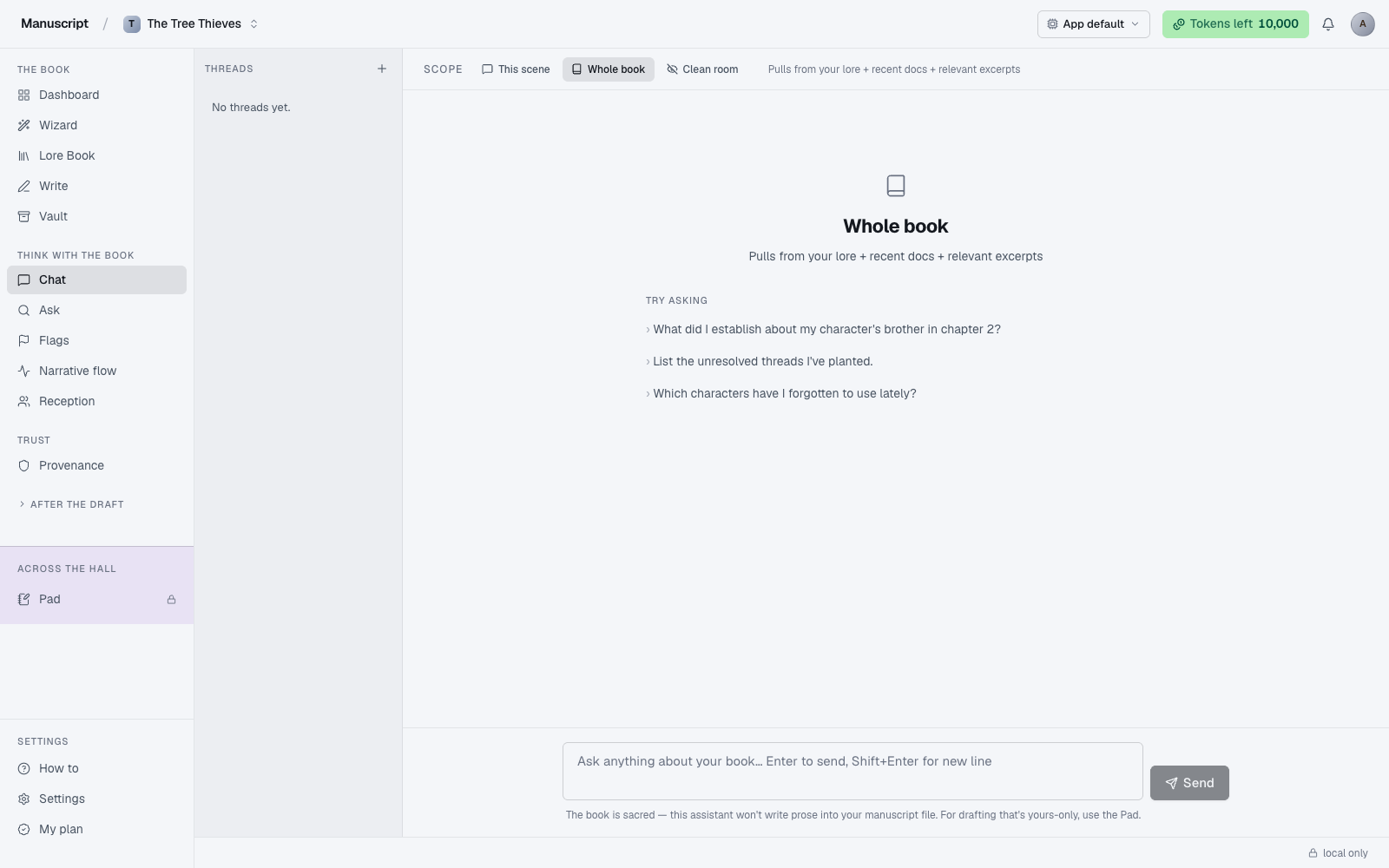
The three chips are laid out left-to-right and always visible. The active one is filled with the ink background; the inactive two sit as ghost buttons that darken on hover. Hovering any chip surfaces a tooltip that spells out what it pulls, and on screens wider than a tablet the description of the active scope prints in faint text to the right of the row.
- This scene — Chat gets the current scene plus the top few full-text matches for what you asked. Fast, focused, cheap on tokens. Best when you're inside a specific chapter and asking about it ("what would my character notice in this scene that I haven't shown?", "pace check — does this scene drag?").
- Whole book — Chat gets a Lore Book overview (title, synopsis, all named entities), your most recently edited documents, and the top matching excerpts from your manuscript retrieved by full-text search. This is the default and the most useful for structural questions ("does the second act sag?"), continuity questions that cross chapters, and inventory questions ("which characters have I forgotten to use lately?").
- Clean room — Chat gets no book context at all. It's a plain AI conversation. Best for craft questions where you don't want your specific book influencing the answer ("what makes a good chapter opening in psychological thrillers?", "how do writers signal a POV shift without a scene break?").
You can switch scope mid-thread. The next message you send uses the new scope; the earlier messages in the same thread keep whatever scope they were sent under. This means a single thread can start as a clean-room craft discussion and shift to whole-book once you're ready to apply the idea, without starting over.
What Chat does when it quotes your book
When Chat quotes your manuscript, it cites the source — the chapter and scene, and enough context that you can find the passage in Write. It does this so you can verify the quote is real and hasn't been paraphrased or invented. If the citation isn't there, treat the quote as suspect and ask Chat to confirm.
If you ask Chat to link two things that aren't actually connected in your book, it'll say so. If a claim can't be sourced from what you've written, it doesn't invent a source and it doesn't pretend to have found evidence it hasn't. This is the part of the surface most likely to surprise you — the model has been trained to admit ignorance about your specific book rather than hallucinate confident detail, and the system prompt reinforces it every message.
The retrieval that feeds book-scope and scene-scope answers is the same full-text search that powers Ask. If a passage doesn't appear in the top matches for your query, the AI doesn't see it — which is why sometimes rephrasing a question in the exact words your manuscript uses will unlock a better answer than a paraphrased one.
Threads
Each conversation is a thread, and the left sidebar is a scrolling list of every thread you've started in the current manuscript. The label is the first line of your first question, truncated to fit the width; the meta line below it shows the scope the thread started under (with the same icon as the scope chip) and how long ago you last touched it ("2h", "3d").
The thread you're currently reading is highlighted in the active-row color; the others sit in the muted foreground until you hover them. Hovering any row surfaces a small trash icon on the right — click it and confirm to delete the thread and its messages permanently.
The header of the sidebar has a + button that starts a new empty thread. It doesn't switch scopes for you — the new thread inherits whatever scope the chip was set to when you clicked. On smaller screens the sidebar collapses behind a toggle in the top-left of the composer bar; tap it to slide the thread list in over the conversation.
If you're arriving from another surface for the first time and the app finds prior Manuscripts.ai chat threads on your account, the empty state offers a one-shot Import chats button that copies them into the local thread list. It's a one-time migration — once you've imported, that panel doesn't come back.
Streaming and cancellation
Chat streams by default. When you send, the assistant bubble appears immediately with a "Thinking…" spinner underneath, then tokens begin arriving and populating the bubble live. You can read as it writes and interrupt as soon as you see the answer is going somewhere you don't want.
To cancel, navigate away from the page or close the tab. The server flushes whatever it had, persists the partial reply so you can see what came through, and stops billing. Cancelling doesn't cost you the full token bill — only what was actually generated before you stopped. This matters most on whole-book scope answers, which can run long.
If the stream errors out ("we couldn't reach the chat service", "lost the connection"), the failed message pair is removed from the conversation and a friendly banner explains what happened. Retry by sending the same message again — nothing was persisted from the failed attempt.
What Chat is good at
- Working through a plot problem. "My protagonist needs a reason to visit her mother in chapter 8. What's already been set up in earlier chapters that would motivate that visit?"
- Reading continuity across chapters. "Have I established what year this takes place? Am I contradicting anything about the layout of the house?"
- Testing an ending. "Does the resolution feel earned given what's been set up?"
- Sparring on structure. "Where does the pacing sag? Which chapters could be cut without losing anything?"
- Craft questions in clean-room scope. "How do writers signal a POV shift without a scene break?"
- Inventory questions. "List every character I've named but only mentioned once."
What Chat is not for
Chat is not for drafting prose you'll paste into the manuscript. That's what Write's inline commands are for, and every accepted word there is logged to Provenance so the audit trail stays intact. Chat replies aren't logged to Provenance, because nothing you do here can end up in the manuscript file — the wall is upstream of the ledger.
Chat is also not for exploratory freewriting where you want to play with voice and never save the result. That's what the Brainstorm Pad is for — the Pad is structurally isolated with copy-out disabled, so nothing typed there can leak into your draft. If you find yourself trying to get Chat to write in your voice for you, close it and go to the Pad instead.
If you're not sure which surface you want, try Chat first. It's the middle path — enough context to be useful, enough refusal to be honest.
Voice fingerprint and Chat
Voice fingerprint is not injected into Chat. Chat is for thinking, not writing — and giving the AI your voice would make it a co-writer through the back door. The four surfaces where voice does inject are the editor inline commands, templates, Desk drafts, and Echoes. Chat, Pad, and Flags deliberately stay out. See Voice fingerprint for the full list of what does and doesn't inject.
How to use it
- Click Chat in the left sidebar under "Think with the book". A two-pane layout opens: threads on the left, an empty conversation on the right.
- In the toolbar above the conversation, use the Scope chips to pick what the assistant sees: This scene (a few related excerpts), Whole book (lore + recent docs + top matches — the default), or Clean room (no book context). The active chip is filled; the tooltip on hover explains what it pulls.
- Below the chips, an example panel shows three sample questions for the scope you picked. Read them to prime yourself, then type your own question into the textarea at the bottom. Press Enter to send, or Shift+Enter for a new line.
- Your message appears on the right in a rounded bubble; a "Manuscript" reply block appears below it and tokens stream in live. A spinning "Thinking…" indicator shows below the reply until the stream finishes.
- When the reply lands, the thread gets an auto-generated title and moves to the top of the Threads list on the left. Click any prior thread there to reopen it — messages persist across sessions.
- To start over, click the + icon in the Threads header. To delete a thread, hover its row and click the trash icon that appears on the right.
- You can switch scope mid-thread — the next message you send uses the new scope. Cancel a mid-stream reply by navigating away; only the tokens that already arrived are billed.
What to read next
- Ask — for a plain search across your book without a conversation
- Brainstorm Pad — for pure exploration when you don't want a co-thinker at all
- Write — when you're ready to write a paragraph