The essentials
The editor is designed for keyboard writing. Every shortcut listed here works whether you signed in with a handle-and-password account or with Google — they're bound to the editor surface, not to your session. That means the muscle memory you build on your laptop carries directly to a borrowed device, a second workstation, or a coffee-shop Chromebook.
Where a shortcut differs on Windows / Linux, both are shown. On Mac the modifier is ⌘ (Cmd); on Windows / Linux it's Ctrl. A few chords use the Shift key on top; those are noted inline.
Most shortcuts fire on the currently focused surface. If you're inside a modal, a suggestion sheet, or a typeahead, the editor's shortcuts pause so they don't fight with what you're doing. Press Escape to close the modal and shortcuts reactivate immediately.
Editor — Write
| Shortcut | What it does |
|---|---|
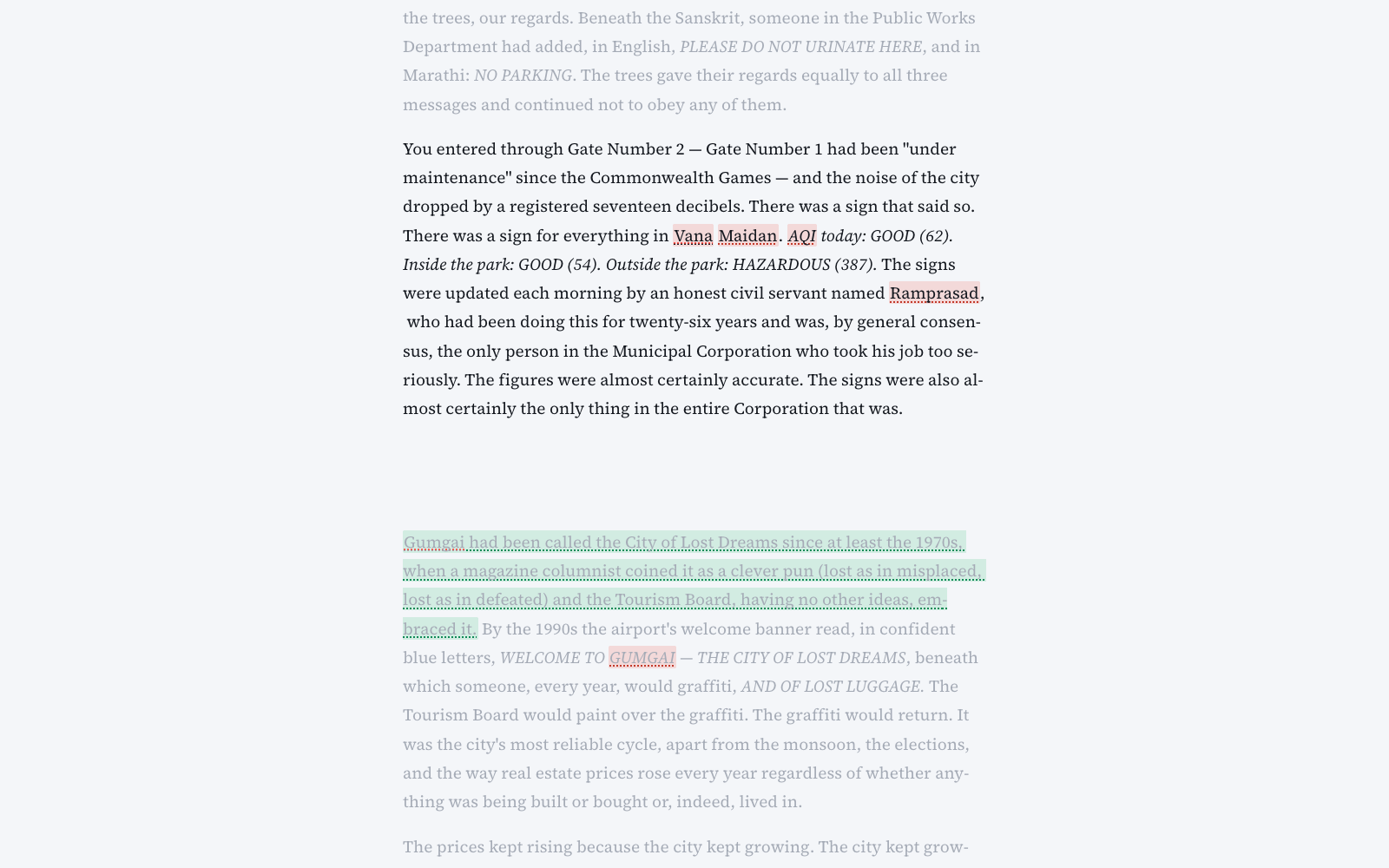
| ⌘. / Ctrl+. | Toggle focus paragraph mode. Every paragraph except the current one fades out. |
| ⌘F / Ctrl+F | Open find and replace inside the current document. |
| ⌘Z / Ctrl+Z | Undo the last edit. |
| ⌘⇧Z / Ctrl+Shift+Z | Redo. Also ⌘Y / Ctrl+Y. |
| ⌘B / Ctrl+B | Bold. |
| ⌘I / Ctrl+I | Italic. |
| ⌘U / Ctrl+U | Underline. |
| Enter at the start of a paragraph | Create a new empty paragraph above. |
| / on an empty line | Open the slash menu — headings, chapter break, horizontal rule. |
| @ anywhere | Open the Lore Book typeahead. Pick an entry or Create on the fly. |
Editor — AI commands
The bubble menu (which appears when you have text selected) is mouse-driven — there's no dedicated shortcut per command. You use it by selecting text, then clicking the command you want in the AI dropdown. This is deliberate: with twelve inline commands plus three transform submenus, a keyboard-first surface for AI would need chords that are hard to remember and easy to fire by accident. Selection + click is unambiguous.
Inside the suggestion sheet, both Accept and Reject are mouse-driven — click Accept to commit the change (logged to Provenance) or Reject to discard it. No keyboard shortcut is wired for the sheet yet. Adding Cmd+Enter for Accept is one of the requests on our shortlist; if you'd find it valuable, email support (see the "What doesn't have a shortcut yet" section below).
Guide navigation
The /guide pages themselves have a small set of shortcuts for reading through the documentation without touching the mouse. If you're skimming the guide from top to bottom (a common first-hour pattern), the arrow keys turn the guide into a slideshow.
| Shortcut | What it does |
|---|---|
| ← | Previous page in reading order. |
| → | Next page in reading order. |
| ⌘C / Ctrl+C on the Copy Page button | Copy the raw markdown of the current page to your clipboard. Useful for feeding a page to an LLM. |
The arrow-key navigation is ignored inside form fields, so it won't interfere with typing. If you have a search box focused (like the one on the guide index) or you're typing inside a code block, the arrows do their usual cursor thing.
Global
Two global shortcuts are relevant but neither is doing what you might expect. ⌘K is not currently bound anywhere — we're reserving it for a future command palette (jump to any page, run any AI command, search across surfaces) and don't want to squat the chord in the meantime. ⌘S is suppressed inside the Wizard specifically to prevent the browser's "Save Page As…" dialog from firing mid-answer.
| Shortcut | What it does |
|---|---|
| ⌘K / Ctrl+K | Not currently bound — reserved for a future global command palette. |
| ⌘S / Ctrl+S | Suppressed in the Wizard so the browser's "Save Page As…" dialog doesn't fire mid-answer. Autosave already handles saving. |
Autosave means you never need to press a "save" chord anywhere in the app. If you find yourself reflexively pressing Cmd+S out of habit from other tools, it's harmless — the browser dialog might appear on some surfaces but nothing about your work depends on it firing.
What doesn't have a shortcut yet
There are several surfaces where a well-placed shortcut would save real time but we haven't shipped one yet. These are on the shortlist and we prioritise by request volume:
- Jump between manuscripts on the Dashboard
- Toggle Chat's scope chip (this scene / whole book / clean room)
- Move between Outline nodes without touching the tree
- Run the previous inline AI command again on a fresh selection
- Accept / Reject inside the suggestion sheet
- Jump between report cards in the Reports rail
If a shortcut you expect isn't in the table, it isn't wired. Email support with the shortcut you'd want and the flow it would save you time on — the concrete "here's the pattern I'm doing five times a day" framing is what makes a request move up the queue.
Focus paragraph mode — a note
⌘. is the shortcut authors ask about most. It's a tribute to iA Writer's signature feature: the paragraph you're in stays crisp, and everything else fades to a soft gray. When you scroll or click into a different paragraph, the focus moves with your cursor — the fade follows you around the document.
The implementation is a TipTap extension (src/components/editor/focus-paragraph.ts) that applies a .focus-active class to the current paragraph and a .focus-paragraph class to the container. The CSS dims non-active blocks to var(--text-disabled) and brightens the active one back to full contrast. Because it's a decoration (not a real style change), it never mutates your document.
If you toggle focus on and later can't see the fade because your cursor is between paragraphs, click into any paragraph — the fade is applied only when a paragraph is active. Toggling ⌘. again turns it back off; the footer button in the editor also toggles it if you prefer a click to a chord.
How to use them
The three shortcuts worth learning first are ⌘. (focus paragraph mode), ⌘F (find inside the document), and / (slash menu for structural inserts). Everything else is convenience on top of those three. Here's a one-minute run-through if you want to build the muscle memory in one sitting:
- Click Write in the sidebar and open any document. Put your cursor inside a paragraph so the editor has focus.
- Press ⌘. (or Ctrl+.). Every paragraph except the one your cursor is in fades to a soft gray. Move your cursor into a different paragraph and the fade follows.
- Press ⌘. again to turn focus mode off. All paragraphs go back to full contrast.
- Press ⌘F (or Ctrl+F). The find panel opens at the top of the editor with a search field ready for input. Type a word and matches highlight in the prose.
- Press Esc to close the find panel.
- Move your cursor to a blank line, press /, and the slash menu opens with structural inserts — Chapter (H1), Scene (H2), Subheading (H3), lists, and quote. Pick one to convert the current block.
What to read next
- Write — the editor page these shortcuts operate in
- Common recipes — task-shaped walkthroughs
- Troubleshooting — if a shortcut isn't firing