Signing up
Open Sign up. You land on a centered card with the Manuscripts.ai logo up top, a Create your account heading, and four fields stacked in a single column. Nothing else on the page competes for attention — this is a deliberate one-thing-at-a-time screen.
The fields, in order, are:
- A display name (optional) — the friendly name that appears on your avatar and in the top-right menu. If you leave it empty, we fall back to the local part of your email. Two-character minimum if you fill it in; anything shorter is rejected client-side with a small red "name is too short" note under the field.
- An email address — please use a real one you check. Support, billing receipts, password resets, and any account-recovery messages all go here. A basic pattern check happens client-side (
something@something.tld); the server does the deeper uniqueness check. - A password — minimum 8 characters. Use a passphrase, not a word. There's no complexity theatre (no forced special-character requirement) because length matters more than pattern rules.
- Confirm password — has to match the field above. If it doesn't, a red "passwords don't match" note appears under this field the moment you submit.
Below the fields is a filled Create account button that shows a spinner while the request is in flight. Underneath a subtle "or" divider is a Sign up with Google button — same account behavior, no password to manage, Google handles the sign-in flow. If Google returns an error, the error text surfaces in a red banner just above the button.
When signup succeeds, three things happen on the server before the response comes back: your user row is created with a scrypt-hashed password, a fresh empty project is created and pinned as your active project, and a mc_session cookie is set with a 30-day sliding TTL. You're then redirected to the Dashboard.
Signing in
Open Sign in. Same centered card, with Welcome back as the heading, two fields (email + password), a Stay signed in checkbox that's on by default, and a Forgot password? link floated right underneath the password field. The Sign in button is a full-width filled button below; the Sign in with Google button sits under the "or" divider.
If you tried to reach a page inside the app while signed out — say /write or /chat — the proxy redirected you to /signin?next=<the-path-you-wanted>. After you sign in successfully, we route you back to that page instead of the default dashboard, so you don't have to navigate again. The redirect is validated: only same-origin paths starting with a single / are accepted, so no one can craft a ?next=https://evil.example.com to hijack the flow.
Sessions last 30 days from your last visit. Every time you use the app, the server rotates the cookie's expiry forward — so if you're writing daily, you effectively stay signed in indefinitely. If you disappear for a full month, you'll be asked to sign in again on your next visit. The 30-day window is a deliberate compromise: long enough that daily writers never see the sign-in screen, short enough that a laptop left on a train doesn't grant permanent access.
If sign-in fails, the reason surfaces in a red banner above the button — "invalid credentials" for a wrong password, or the raw server message for anything unusual. There's no lockout after N attempts; we lean on strong password hashing rather than rate limits.
Signing in on a second device
Sign in the same way on your laptop, phone, or a browser you don't normally use. On first sign-in on a new device, the app runs a one-time hydration: it pulls your manuscripts, lore, outline, and settings from the cloud mirror into the device's local SQLite store, which takes a few seconds. You'll see the dashboard populate as the pull completes — no manual "refresh" needed. See How your data works for the sync architecture.
You can be signed in on as many devices as you want simultaneously. Every device has its own session cookie; signing out on one doesn't sign out the others. That's intentional — the phone-in-the-airplane and laptop-at-the-desk workflow shouldn't force you to re-authenticate every time you switch.
Forgot your password
On the sign-in page, click Forgot password? underneath the password field. You'll land on /forgot, a single-field page asking for your email. Submit it, and we email a single-use reset link to that address. The link expires within a short window (currently 30 minutes) so an old email in your inbox can't be reused three months later.
If you signed up with Google, there's no password to reset — Google is the source of truth for that account's credentials. Use the Sign up with Google button on the sign-in page instead. If you're not sure which method you used, try the Google button first; if the account exists, you'll be signed straight in.
If the email you're trying to reset with isn't on file, the reset endpoint still returns a success message. That's deliberate — it prevents anyone from probing whether a given email has an account here. So if the reset email doesn't arrive after a few minutes, double-check the address (typo? old one?) and try again.
Signing out
The avatar in the top-right corner of any page opens a small dropdown menu with your display name, your email, and a Sign out button at the bottom. Clicking Sign out hits /api/auth/logout, which destroys your session row on the server and clears the mc_session cookie on this device. You're redirected to /signin.
Signing out affects this device only. Other devices you're signed into keep their sessions until they expire or you sign out on them individually. If you use a shared computer — a library, a partner's laptop, a hotel business center — sign out before you close the browser. The 30-day sliding cookie will otherwise keep the next person signed into your account.
Which email should I use
Use an address you actually read. In practice this matters for three things:
- Billing receipts for a Professional subscription or Deep Analysis credit pack — sent to your account email as an invoice PDF. If the address is stale, you may miss a card-expiring notice or a receipt your accountant needs.
- Support — when you email support at Manuscripts, we match your address against your account to find your work faster. A no-reply Gmail alias for signup will make every support ticket a "which account is this?" back-and-forth.
- Account recovery — if you ever lose your password and can't reach the Google account you signed up with, the email on file is our only path back to you. There's no phone number, no security-question fallback, no backup email. This is the door.
You can't currently change the email on your account through the app UI — the field is read-only on /account for exactly this reason. If you need to move an account to a new email, email support and we'll do it manually after we've verified you own both addresses.
Deleting your account
Open your account settings via the avatar menu (top-right → Account). Scroll to the bottom card and use Delete account — currently under quiet development; while it's being finished, email support and we'll do the delete manually within a business day.
Deletion is hard: your manuscripts, Lore Book entries, chat threads, template runs, voice fingerprint, and Provenance ledger are removed from both the local database and the cloud mirror. Billing records (invoices, past transactions, subscription state) are retained for legal reasons — see Privacy for what specifically stays and why.
Before you delete, export any manuscript you want to keep. In Write, open each document and use the Export button in the meta row — DOCX, PDF, EPUB, AZW3, Markdown, and plain text are all available. From Provenance, export the Markdown or JSON ledger if you want a permanent record of AI-accepted paragraphs. Two-file backup, two seconds, belt and braces.
Deletion is not reversible.
What data lives under your account
Everything you touch inside the app is scoped to your user account. Concretely:
- Every manuscript (project) you've created, including its full document tree, Lore Book, and Outline
- Every chat thread, template run, and Desk draft — with their full message history
- Your voice fingerprint, if you've generated one
- The full Provenance ledger — every AI-accepted paragraph, with before/after text, task kind, and timestamp
- Your saved custom prompts (from the
/accountMy prompts section) - Your model preferences (from the
/accountAI model section) - Your billing history, if you've made any purchases
Users are strictly isolated — nothing you upload or write can be seen by another Manuscripts user under any circumstance, including support staff, unless you explicitly share an exported file yourself. See How your data works for where all of this physically lives, and Privacy for what leaves your device in the course of using AI features.
How to use it
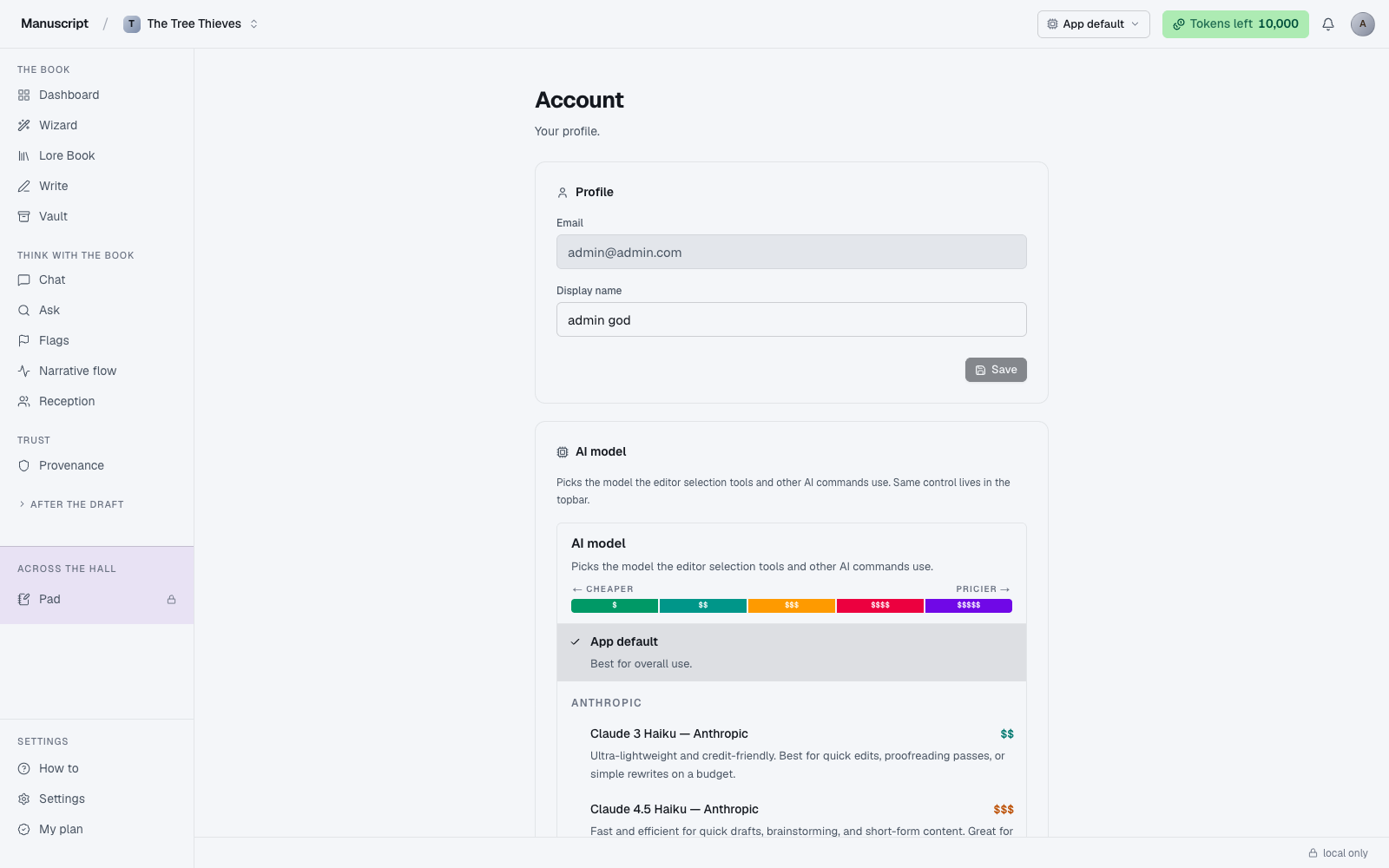
- Click your avatar in the top-right of any page and choose Account from the dropdown. You land on
/accountwith three cards: Profile, AI model, and My prompts. - In the Profile card, the Email field is read-only (see "Which email should I use" above). Type in the Display name field to change how you're addressed - the Save button below activates as soon as your input differs from the saved name.
- Click Save. The button shows a spinner for about a second, then a "Saved." toast appears at the bottom center of the page for 3 seconds. The avatar and top-right menu update immediately.
- Scroll to the AI model card if you want to change which model runs the editor's inline AI commands. The ModelSelector dropdown lists every enabled model; picking one writes to
user_prefsand takes effect on the next AI command. The same control lives in the topbar. - Scroll to the My prompts card to save reusable AI prompts. Click New prompt, fill in a Label (e.g. "Tighten dialogue"), a System prompt, and a Template containing
{{TEXT}}for the selected text, then click Save prompt. Saved prompts appear in the editor's BubbleMenu under "My prompts". - To end your session, scroll to the bottom card and click Sign out. You're redirected to
/signin. Other devices you're signed into remain signed in.