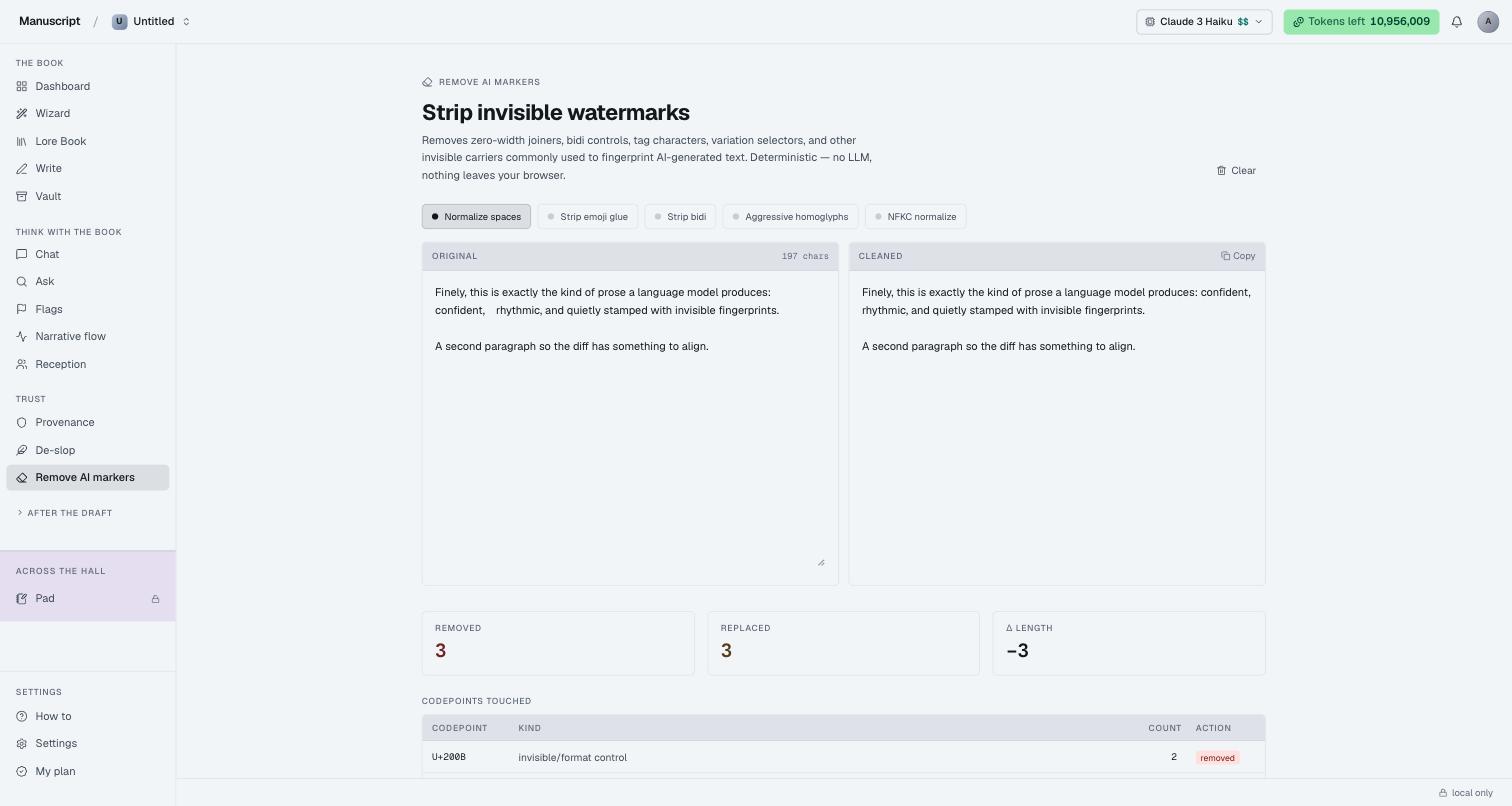
What Remove AI markers is
Remove AI markers is a deterministic, in-browser cleaner that strips the invisible characters commonly used to fingerprint AI-generated text: zero-width joiners, bidi controls, tag characters, variation selectors, non-breaking spaces used as filler, and a growing set of homoglyph substitutions (Cyrillic а for Latin a, Greek ο for Latin o).
It doesn't call an LLM. There is no round-trip. Every transformation is a regex or a lookup table running on your device — so it costs zero tokens, runs instantly on any length of text, and works offline. The output is deterministic: paste the same input twice and you get identical output.
If De-slop is the "make the prose sound less like AI" tool, Remove markers is the "strip the trace evidence" tool. They're complementary, not overlapping.
Why invisible watermarks are a thing
Modern LLM outputs frequently ship with:
- Zero-width joiners (U+200D) and zero-width non-joiners (U+200C) — invisible, but detectable by any tool that hashes bytes
- Bidi controls (U+200E LRM, U+200F RLM, U+202A–U+202E overrides) — invisible, occasionally weaponised for URL spoofing, but also used as covert markers
- Tag characters (U+E0000–U+E007F) — literal invisible tags that spell out arbitrary strings
- Variation selectors (U+FE00–U+FE0F, U+E0100+) — meant to select glyph variants but often abused as marker channels
- Non-breaking spaces (U+00A0) — used as separators that a human eye can't distinguish from a normal space
- Homoglyphs — visually identical letters from other scripts (Cyrillic, Greek, Fullwidth Latin) substituted for Latin
Some of these are stamped by the model provider directly; some are added by tools that anti-plagiarism software watches for. Publishers who scan for AI-written submissions increasingly look for these fingerprints because prose-level detectors have become unreliable. Stripping them isn't about evasion — it's about not carrying a marker into your manuscript that you didn't put there.
The toggles
Five options run at the top of the page. Each is on or off independently — click a chip to toggle. The active chip has a filled dot; the inactive chip has a hollow ring.
- Normalize spaces (default: on) — collapses runs of whitespace, replaces
U+00A0(non-breaking space) with a regular space, stripsU+2028andU+2029line/paragraph separators - Strip emoji glue — removes zero-width joiners (
U+200D) used to glue emoji into families/sequences. Leaves the emoji themselves alone - Strip bidi — removes bidi controls (
U+200E,U+200F,U+202A–U+202E,U+2066–U+2069). Turn off if you're writing right-to-left content that legitimately needs them - Aggressive homoglyphs — swaps common Cyrillic and Greek homoglyphs to their Latin equivalents (Cyrillic
а е о р с х→ Latina e o p c x). Off by default because it's the transformation most likely to touch text you didn't intend it to (foreign-language passages, deliberate stylistic choices) - NFKC normalize — Unicode compatibility normalisation. Collapses fullwidth Latin, ligatures, and other visually-identical variants to their canonical forms
Every transformation runs live, on every keystroke — no button, no delay. If a paragraph on the left changes, the cleaned paragraph on the right updates within a frame.
The stats
Below the split, three tiles show the last run's numeric shape:
- REMOVED — count of characters deleted
- REPLACED — count of characters swapped (e.g.
U+00A0→ space, Cyrillicа→ Latina) - Δ LENGTH — signed difference in character count between original and cleaned
Below the tiles, a CODEPOINTS TOUCHED table lists every codepoint the transformations acted on, with:
- CODEPOINT — the raw Unicode value (e.g.
U+200B) - KIND — human-readable classification (e.g.
invisible/format control,bidi control,homoglyph,whitespace) - COUNT — how many times it appeared
- ACTION — what happened to it, as a coloured chip (
removedin red,replacedin ochre,normalizedin blue)
This table is the audit trail for the pass. If your publisher asks "what did you strip from the file", the codepoints-touched table is the answer.
Copy, clear, sample
- Try a sample — populates the Original panel with a slop-y paragraph that carries every marker type the cleaner handles, so you can see all five transformations demonstrated in one run
- Copy — copies the cleaned output to the clipboard once there's something to copy
- Clear — resets both panes and the stats
The char count chip on each panel updates live so you can see the exact character difference the cleaner made.
Remove markers inside the editor
Like De-slop, this tool is also wired into the Write BubbleMenu — same AI dropdown, own entry labelled Remove AI markers.
Select any paragraph, open the AI menu, choose Remove AI markers. The suggestion sheet slides in on the right with the cleaned text. If the selection had no markers to strip (clean text, all Latin, no zero-widths), the sheet renders a calm message instead: "No invisible markers or homoglyphs found in this selection." No LLM call, no cost.
If the selection did have markers, Accept replaces the selection with the cleaned text and writes an event to Provenance with the full before/after — the codepoints touched are preserved in the record so the audit trail explains exactly what was stripped. Reject leaves the manuscript untouched.
Because the transformation is deterministic (no LLM in the loop), the in-editor path uses zero tokens. Your token counter is unchanged whether you Accept or Reject.
What Remove markers does not do
- It does not rewrite prose. Words stay in the order you wrote them.
- It does not call an LLM. There is no server-side pass; everything runs in-browser.
- It does not touch typography inside straight or smart quotes when Aggressive homoglyphs is off (dialogue is safe by default).
- It does not persist runs from the standalone page. Nothing is logged unless you use the in-editor path and Accept.
When to use it
- After importing a chapter from any AI-drafted source
- Before a submission to a contest or publisher that scans for invisible markers
- After copy-pasting from a chat surface (Chat inside this app doesn't insert markers, but chat surfaces outside sometimes do)
- On a paragraph where a diff tool shows a change your eyes can't see — Remove markers will name the codepoint responsible
Every so often, run Try a sample just to remind yourself what the transformations look like. The KIND / COUNT / ACTION table is the clearest short explanation of "what an invisible watermark actually is."
How to use it
- Standalone: Sidebar → Trust → Remove AI markers. Paste text into the Original panel (or press Try a sample). Cleaned output updates live in the right pane as you type. Toggle the five option chips at the top to change what the cleaner strips.
- Read the REMOVED / REPLACED / Δ LENGTH tiles below the split for the numeric summary of what changed.
- Read the CODEPOINTS TOUCHED table for the per-codepoint audit — codepoint value, kind, count, action.
- Press Copy on the Cleaned panel to grab the output. Press Clear to reset.
- In the editor: Open a document in Write. Select a paragraph. In the BubbleMenu, open the AI dropdown → Remove AI markers.
- If the selection had markers, the suggestion sheet shows the cleaned text; press Accept to replace the selection (logged to Provenance). If the selection was clean, the sheet shows the "no markers found" message instead — nothing to accept.
- Deterministic and free of LLM cost either way. Your token counter is unaffected.
What to read next
- De-slop — the prose-level rewriter, the complementary tool
- Provenance — the audit trail for in-editor Accept events, including which codepoints were touched
- Write — the editor and BubbleMenu that host the in-manuscript path
- How data works — for the record, Remove markers is in-browser; nothing about your text leaves your device on this path