What Atomize does
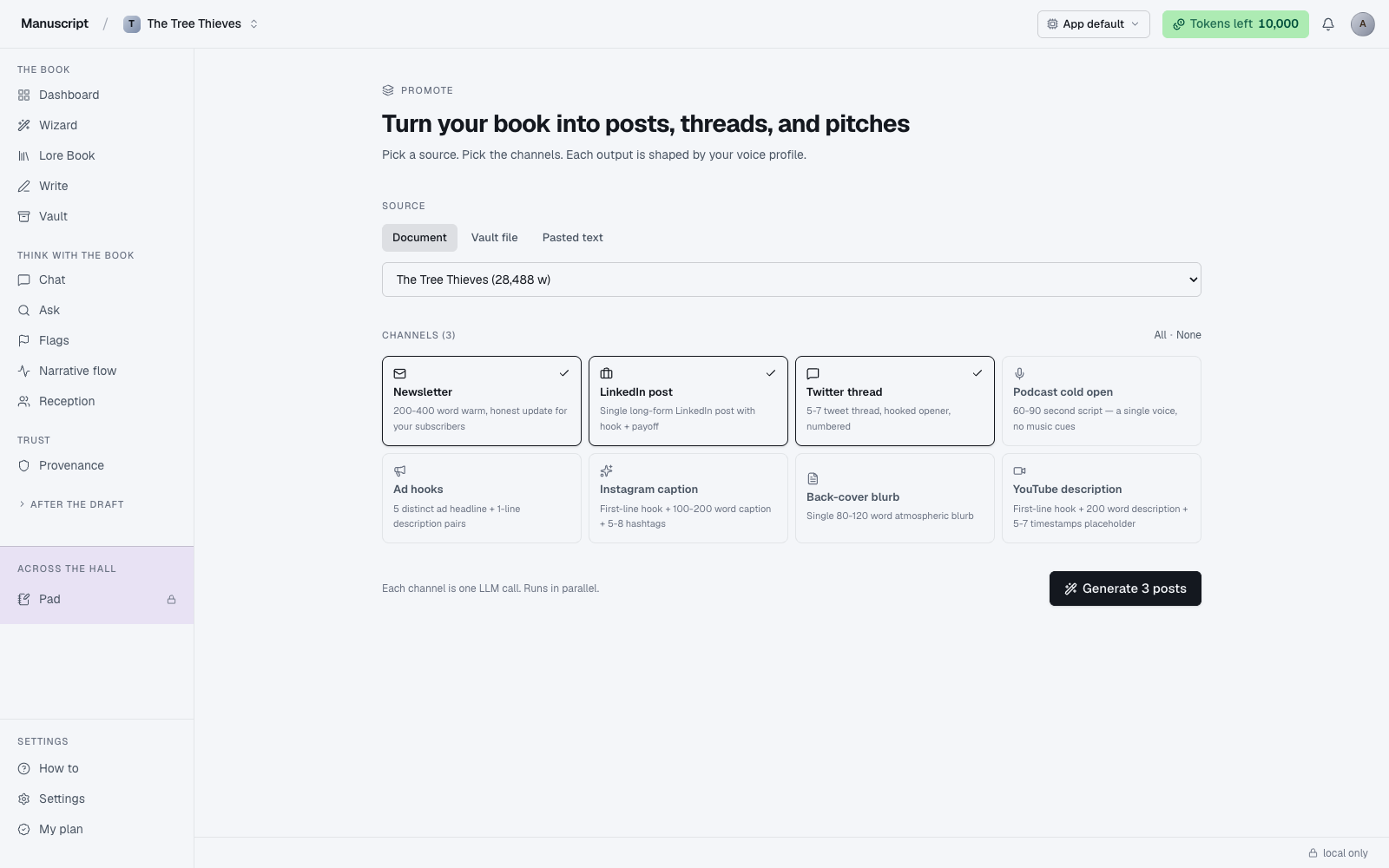
Atomize — labeled Promote in the sidebar and sometimes called Echoes in the microcopy — takes one piece of source material and fans it out into promotional writing across eight different channels in a single run. The page header spells out the ambition plainly: "Turn your book into posts, threads, and pitches."
The scenario Atomize is built for: your book is about to launch, or a chapter is done, or a review just landed. You could spend an afternoon writing a newsletter and a LinkedIn post and a Twitter thread and a podcast intro and back-cover copy — one channel at a time, each in its own voice, each requiring a fresh mental setup. Or you can hand Atomize the source, tick the channels you want, hit one button, and get first-draft versions of all of them at once — all shaped by your voice fingerprint if you have one active.
The underlying pipeline runs each channel in parallel: one LLM call per selected channel, all fired concurrently, each streaming back into its own result card. That parallelism is what makes running eight channels take roughly the same wall-clock time as running one — but it does mean the total token cost is the sum of the parallel calls. Selecting all eight is a meaningful spend; the page nudges you toward selecting only the channels you'll actually use.
Your book, speaking again in other rooms.
Picking a source
The Source section sits at the top of the page and offers three tabs — Document, Vault file, and Pasted text — for three different ways of feeding material in. Every channel's output reflects the source verbatim: it reads what you give it and imitates the voice, so choose deliberately.
- A document — a chapter or scene from Write, pulled directly from your current manuscript. The dropdown lists each document with its title and word count. This is the most common choice: pick your opening chapter for launch drafts, or a strong scene mid-book for organic sharing.
- A Vault file — anything you've uploaded to the Vault — a research note, a personal essay, a prior draft, a review that was written about you. Word counts are shown next to each option. Useful when your source isn't in your manuscript itself but you still want it turned into channels.
- Pasted text — a plain-text textarea for anything not already in the app. Paste a review, a piece of feedback, a scene you've cut, or a couple of paragraphs you're testing. There's no length limit at the UI level, but shorter sources produce more focused output.
The Document tab is pre-selected on first load; if you already have documents in Write, the first one is auto-selected in the dropdown so you can go straight to channel selection.
The eight channels
Below the source selector, the Channels section shows eight cards in a grid — one per channel, each with an icon, a label, and a one-line description. Selected cards get an accent border and a checkmark; unselected sit at rest. Newsletter, LinkedIn post, and Twitter thread are pre-selected on first load because they're the three most-common defaults; use the All and None links in the section header to bulk-toggle.
Each channel has its own format and system prompt tuned for its home:
- Newsletter — a warm 200-to-400-word email to your mailing list, framed around the source. No subject line, no signature — just the body.
- LinkedIn post — professional, first-person, structured for the LinkedIn feed.
- Twitter thread — a 5-to-9-tweet thread, with a hook first and a landing at the end.
- Podcast cold open — a 60-to-90-second monologue in the host's voice, ~150-220 spoken words, ending on a teaser.
- Ad hooks — five distinct short hook variants for paid advertising or organic testing.
- Instagram caption — image-caption length, with a hook and a call-to-action.
- Back-cover blurb — a single 80-to-120-word atmospheric paragraph in the shape of a Desk blurb.
- YouTube description — the below-the-video block that YouTube uses to rank the video.
The count in the section header updates live as you toggle cards ("Channels (3)", "Channels (8)"). That count also determines the CTA at the bottom: "Generate 3 posts", "Generate 8 posts", and so on.
Running
Pick source, pick channels, then click Generate N posts in the bottom-right — where N is the number of channels selected. The button reads "Generating…" with a spinner while every selected channel runs in parallel. Plan on 15–60 seconds for the batch to finish, depending on how many channels you picked and how long the source is. A short footer note reminds you the runs are parallel ("Each channel is one LLM call. Runs in parallel.").
Running all eight channels at once costs meaningful tokens. If you're on the Free plan, run three or four channels at a time rather than all eight — you'll get through more books before hitting your weekly cap. If you hit the cap mid-run the response comes back "Out of tokens. Upgrade or wait for renewal." and the batch aborts before the parallel calls are made.
Cancellation isn't wired in yet — once you hit Generate, the calls run to completion (or timeout). Small comfort: because they're parallel, the whole batch usually finishes fast enough that cancellation wouldn't save much.
Voice fingerprint and Atomize
Voice fingerprint is injected into every Atomize channel when the profile is active. This is the main lever between "AI-generated promotional copy that reads like AI-generated promotional copy" and "promotional copy that reads like it came from you." The Results section shows a small "voice profile applied" chip in its header when injection was live for the run.
If you don't have a voice profile yet and you're running Atomize on a book you spent years writing, generate one first. The difference in output quality is not subtle — verified live on the sample manuscript included with the app, Atomize with voice-on produced a thoughtful newsletter that used the actual source motifs in the trained spare/elliptical voice; voice-off produced generic AI-lyrical prose with the exact elaborate metaphors the profile said to avoid.
Atomize is one of the four surfaces where voice injection happens (the others: inline commands in Write, all templates in Templates, all Desk drafts). Pad, Flags, and Chat do not inject — see Voice fingerprint for why.
Reviewing the output
When the batch finishes, a Results section renders below the Generate button with one card per channel. Each card is stacked in the order the channels appear in the picker (not in the order they finished streaming), so you can scan the batch without hunting for a specific channel.
Each card shows:
- The channel icon and channel name in the header
- The generated text below, in a full-width block
- A Copy button in the header — one click copies the output to your clipboard (the button briefly reads "Copied")
- If a channel errored out (network hiccup, model timeout, prompt refusal), the card shows a small red error message instead of output; other channels still finish independently
Edit before you post anything. Even with voice injection, first drafts are drafts. The AI reads your source and imitates your voice; it doesn't know your specific readers, the running jokes on your mailing list, the tone your Twitter followers actually respond to, or how much you swore in your last podcast episode. It's a starting point, not a final draft.
Persisted runs
Every Atomize batch is saved to atomization_runs. Reopening a past run shows the source, the channels selected, the outputs, and whether voice was active — the same view as immediately after the run finished, no re-generation and no token cost. This is useful when you want to revisit a promotional angle for a re-launch, a paperback release, or a "one year later" post using the same chapter.
Runs are per-manuscript, like everything else in the app. What you generated for your novel doesn't show up in your memoir's history.
When to use Atomize
- Book launch week. Pick the opening chapter or a strong scene; run Newsletter, LinkedIn, Twitter, Instagram, and Ad hooks together. You'll get five aligned first drafts in about a minute; polish each and schedule.
- Pre-order push. Pick the back-cover blurb source; run Newsletter and Instagram caption. Two channels, one voice, one hook.
- After a good review. Pick the review as pasted text; run LinkedIn post and Twitter thread. The AI turns third-party praise into a shareable post without you writing it yourself.
- Podcast prep. Pick the chapter you'll discuss; run Podcast cold open and YouTube description. Cold open becomes your intro monologue; description becomes the show-notes text.
When not to
Before your manuscript is close to finished. Promotional copy generated from a rough draft will be based on a rough draft — the AI can't tell it's promoting an unfinished book. Wait until your text is stable enough that the excerpt Atomize reads is representative.
To ghost-produce all your social presence forever. Atomize is a first-draft engine, not a permanent replacement for your voice. Reading everything you post will make it obvious eventually — even with voice injection, patterns emerge. Use it for launches, milestones, and pushes; write your everyday posts yourself.
What Atomize is not
Not a scheduler. It doesn't post for you, doesn't queue posts for later, doesn't hit the LinkedIn or Twitter API. Copy the output into your posting tool of choice.
Not analytics-aware. It doesn't know what performed well for you before, which channels your readers actually respond to, or what time of day your audience is online. Layer that intelligence on yourself.
Not a substitute for Desk. Desk's query letter, synopsis, blurb, and newsletter are dedicated single-purpose drafts with more nuance and higher token spend per artifact. Atomize's blurb and newsletter are quicker, batched, and shaped for parallel fan-out. Use Desk for the high-stakes agent-facing drafts; use Atomize for the launch-day social sprint.
How to use it
- Click Promote in the left sidebar under "After the draft" (the route is
/atomizeand the surface is sometimes called Echoes). The page loads with the eyebrow "Promote", the header "Turn your book into posts, threads, and pitches", and three stacked sections: Source, Channels, and — after your first run — Results. - In the Source section, click one of the three tabs: Document (a chapter or scene from Write), Vault file (an upload from your Vault), or Pasted text (a plain-text paste box).
- If you picked Document or Vault file, choose the specific item from the dropdown (each option shows title and word count). If you picked Pasted text, paste your source into the textarea.
- In the Channels section, click the channel cards you want to run. Selected cards get an accent border and a checkmark. Newsletter, LinkedIn post, and Twitter thread are pre-selected; use All or None in the section header to bulk-select. The count in the header updates as you toggle.
- Click Generate N posts in the bottom-right (where N is your selected count). The button reads "Generating…" with a spinner while all selected channels run in parallel — plan on 15–60 seconds depending on how many channels and how long your source is. Running all eight channels at once uses meaningful tokens.
- When it finishes, the Results section renders below with one card per channel — icon, channel name, generated text. If your Voice fingerprint was active, a small "voice profile applied" chip shows in the Results header.
- On each result card, click Copy in the header to copy that channel's output to your clipboard (the button briefly reads "Copied"). Edit before you post — the AI reads your source but doesn't know your specific readers.
What to read next
- Voice fingerprint — the switch that makes Atomize output sound like you
- Desk — for higher-stakes drafts like query letters
- Templates — for one-off marketing formats not covered by the eight Atomize channels